
文章目录
- 在当今的软件开发中,一个完整移动应用功能的完善不仅需要用到大量的开源第三方组件,而且还需要由特定机构的云端技术服务提供支持,诸如游戏服务,推送服务等等。而在本期的知识分享中,笔者将循序渐进地给出一个定位服务Demo的完整创建过程,旨在帮助初学者们了解如何将云端服务融入一个应用的功能中。 定位服务Demo的使用效果图如下: 话不多说,Let us begin our journey。
-
- 打开DevEco Studio, 创建一个新项目,相关勾选如下: (提示:【1】包名可以自取,但尽量取复杂一点,这对后面的步骤有用; 【2】SDK一定要配置版本号为6的API,因为Wearable(智能穿戴)的模拟机仅支持此API)。
- (1) 我们需要制作的第一个UI界面如下: 首先,打开entry>src>main>resources>base>graphic>background_ability_main.xml,将代码修改为如下: <?xml version="1.0" encoding="UTF-8" ?><shape xmlns:ohos="http://schemas.huawei.com/res/ohos" ohos:shape="rectangle"> <corners ohos:radius="30"/> //设置圆角 <stroke ohos:width="4" ohos:color="red"/> //设置边框的厚度与颜色 <solid ohos:color="#EDEDED"/> //设置背景色</shape> 接着,我们将这张图片复制到剪切板上: 然后打开之前在IDE创建的项目,并打开entry>src>main>resources>base>media,右击icon.png并选择粘贴,之后将所粘贴的图片命名为pic。 最后,打开entry>src>main>resources>base>layout>ability_main.xml,将代码修改为如下: <?xml version="1.0" encoding="utf-8"?><DirectionalLayout xmlns:ohos="http://schemas.huawei.com/res/ohos" ohos:height="match_parent" ohos:width="match_parent" ohos:alignment="center" ohos:orientation="vertical"> <Image ohos:height="80vp" ohos:width="80vp" ohos:image_src="$media:pic" ohos:margin="10vp" /> //加入一个Image组件 <Button ohos:id="$+id:bn1" ohos:height="30vp" ohos:width="80vp" ohos:background_element="$graphic:background_ability_main" ohos:text_color="black" ohos:text_weight="700" ohos:text_size="12vp" ohos:text="开始定位" ohos:margin="10vp" /> //加入一个Button组件</DirectionalLayout> 第一个UI界面便设计完成了,打开Previewer可查看效果。 (2) 我们需要制作的第二个UI界面如下: 首先,我们需要创建一个新的Page Ability: 打开entry>src>main>Java>com.example.location_hms,右击MainAbility,选择并点击新建>Ability>Empty Page Ability(Java)。 之后,将新建的Page Ability命名如下: 这样,新的Page Ability(即GetLastLocationAbility)便被成功创建,它的默认AbilitySlice(即GetLastLocationAbilitySlice)与xml布局文件(即ability_get_last_location.xml)也随之生成。 此时,打开entry>src>main>resources>base>layout>ability_get_last_location.xml,将代码修改为如下: <DirectionalLayout xmlns:ohos="http://schemas.huawei.com/res/ohos" ohos:height="match_parent" ohos:width="match_parent" ohos:orientation="vertical" ohos:padding="32"> <ScrollView ohos:height="match_parent" ohos:width="match_parent"> //设置滚轮 <DirectionalLayout ohos:height="match_content" ohos:width="match_parent" ohos:orientation="vertical"> <Button ohos:id="$+id:btn_getLastLocationWithAddress" ohos:height="match_content" ohos:width="666vp" ohos:background_element="black" ohos:layout_alignment="horizontal_center" ohos:margin="5vp" ohos:padding="10vp" ohos:text="点击获取当前位置" ohos:text_color="white" ohos:text_size="25"/> //设置Button组件 <Text ohos:id="$+id:show_location" ohos:height="match_content" ohos:width="match_parent" ohos:margin="5vp" ohos:text_color="black" ohos:layout_alignment="horizontal_center" ohos:text_size="25" /> //设置一个用于显示定位信息的Text组件 </DirectionalLayout> </ScrollView></DirectionalLayout> 第二个UI界面便设计完成了,打开Previewer可查看效果。
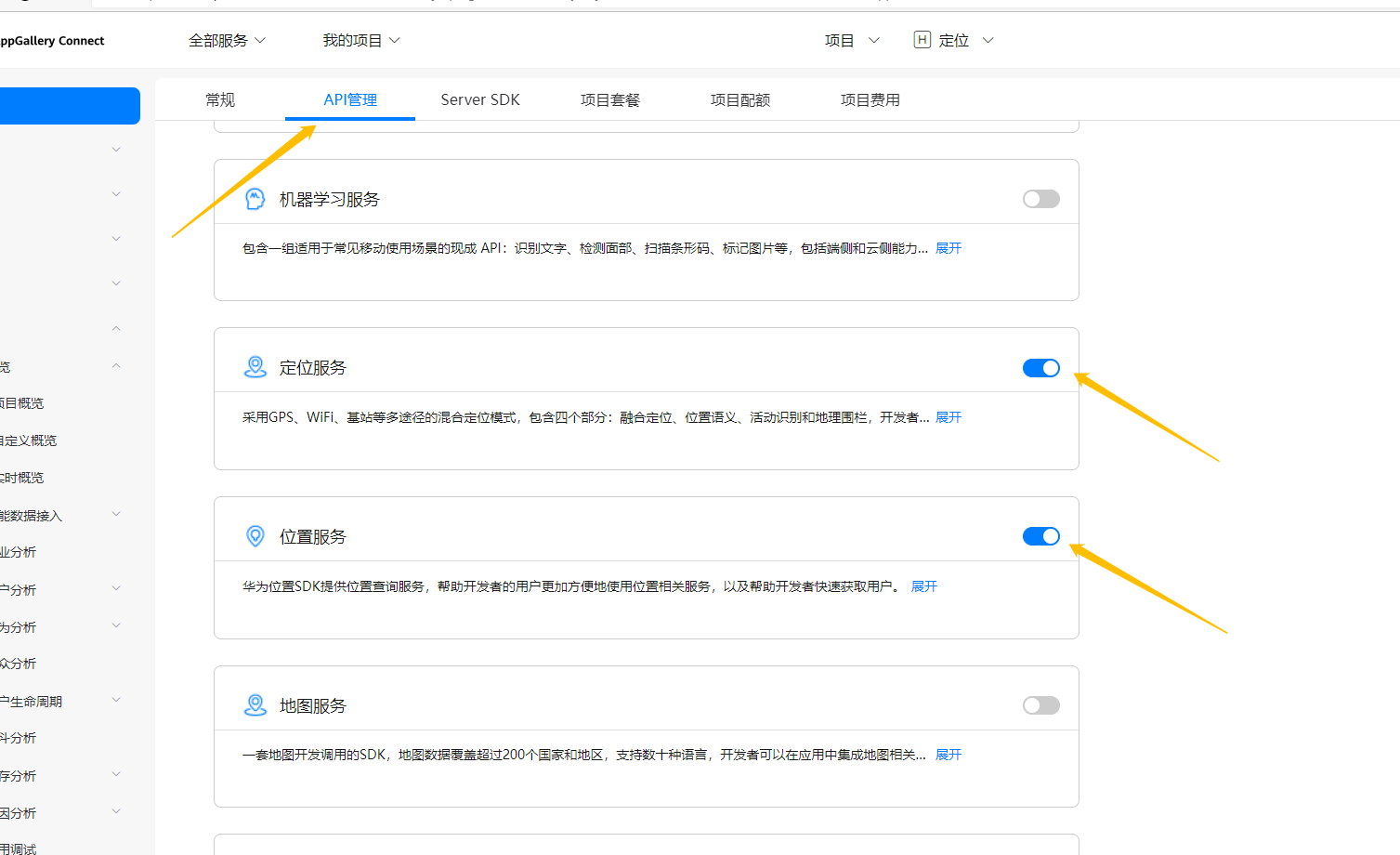
- 首先,进入AppGallery Connect的官网——https://developer.huawei.com/consumer/cn/service/josp/agc/index.html#/。 然后,登陆你的华为账号。 登陆完成后,点击我的项目。 之后,点击添加项目,并自取一个项目名。 取完项目名后,点击添加应用。 接着,依照下图正确填写关于添加应用的信息。 完成之后,网页会给一些操作提示,但我们先点击取消,暂时跳过这些步骤。 最后,点击上方的API管理,并开启定位服务与位置服务。
- 本期的内容就先分享到这,剩下的内容笔者将在下期的文章里揭晓。 想了解更多内容,请访问: 51CTO和华为官方合作共建的鸿蒙技术社区 https://ost.51cto.com

在当今的软件开发中,一个完整移动应用功能的完善不仅需要用到大量的开源第三方组件,而且还需要由特定机构的云端技术服务提供支持,诸如游戏服务,推送服务等等。而在本期的知识分享中,笔者将循序渐进地给出一个定位服务Demo的完整创建过程,旨在帮助初学者们了解如何将云端服务融入一个应用的功能中。
定位服务Demo的使用效果图如下:
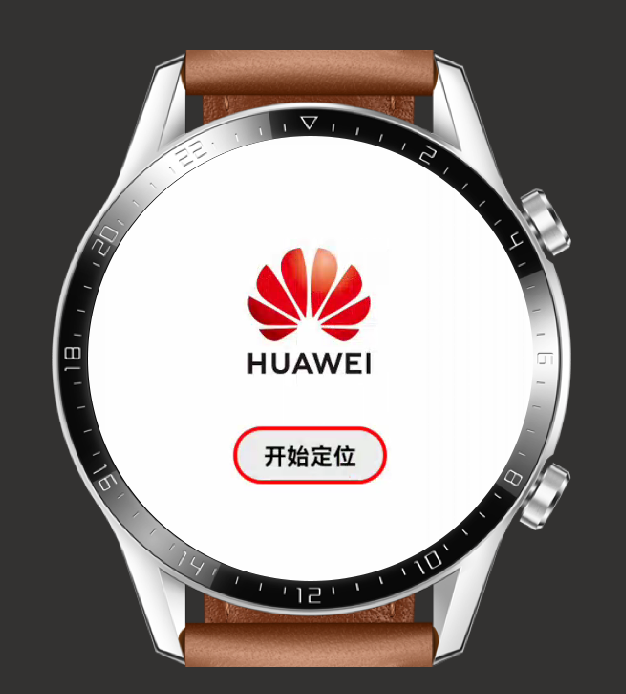
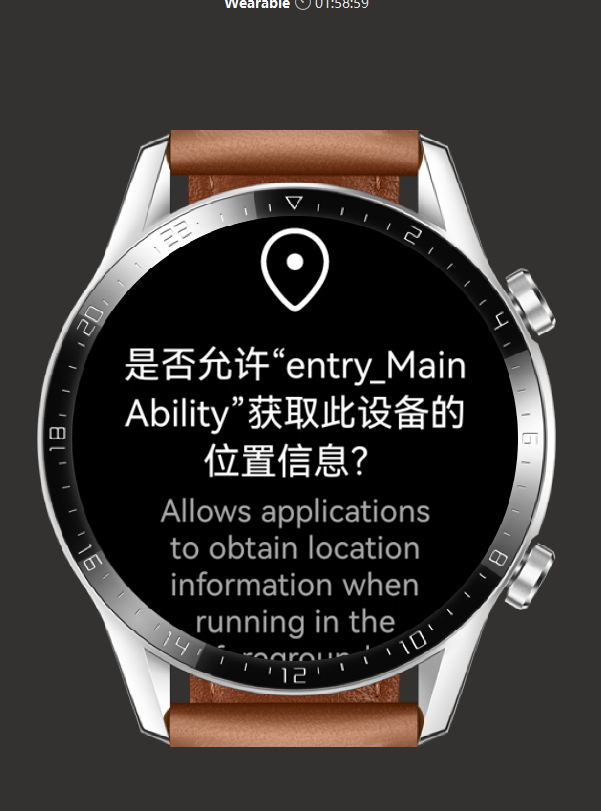
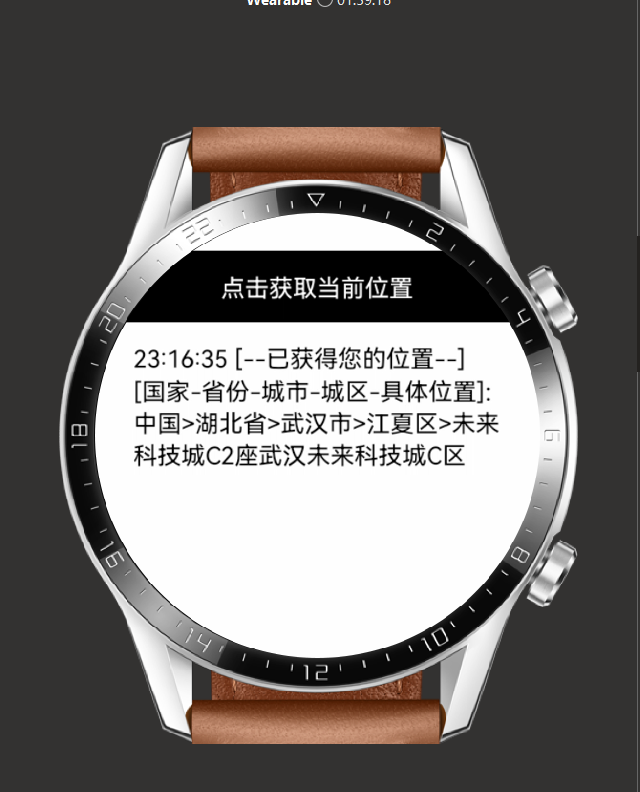
话不多说,Let us begin our journey。
打开DevEco Studio, 创建一个新项目,相关勾选如下:
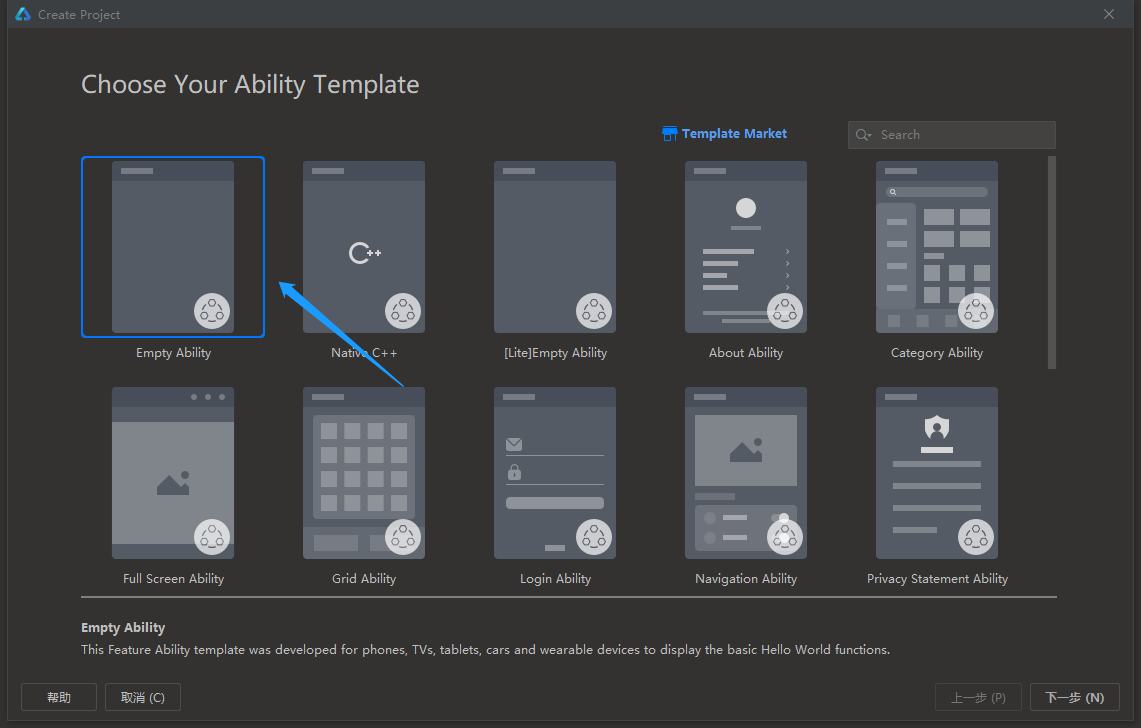
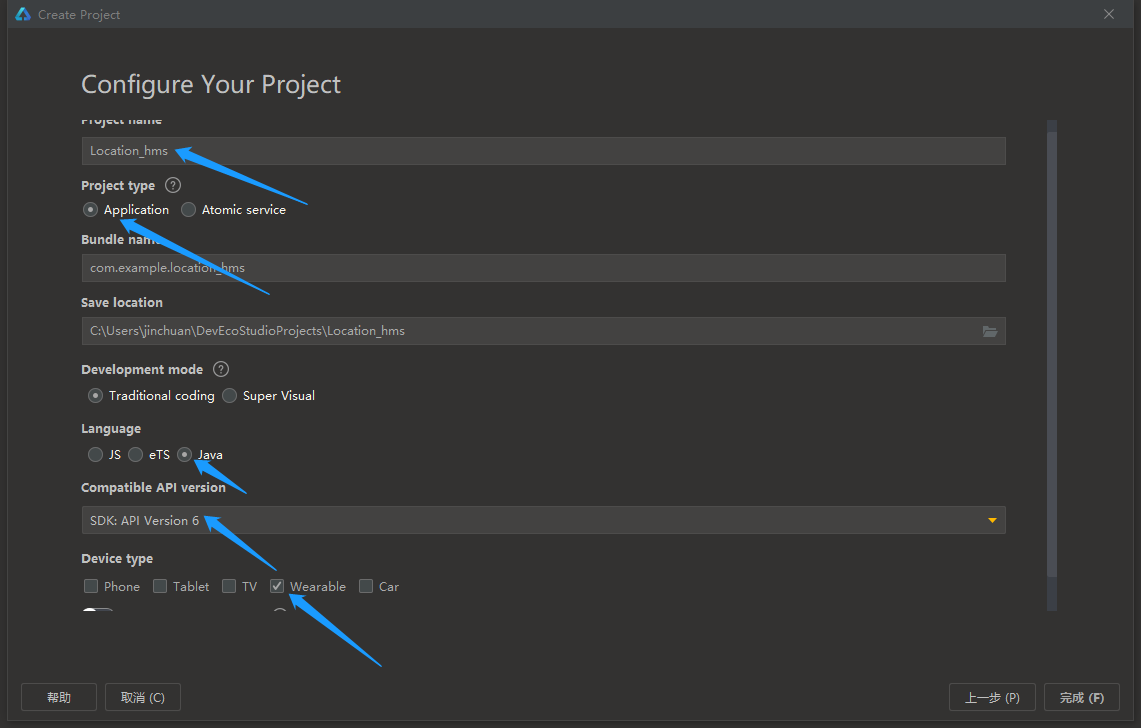
(提示:【1】包名可以自取,但尽量取复杂一点,这对后面的步骤有用; 【2】SDK一定要配置版本号为6的API,因为Wearable(智能穿戴)的模拟机仅支持此API)。
(1) 我们需要制作的第一个UI界面如下:
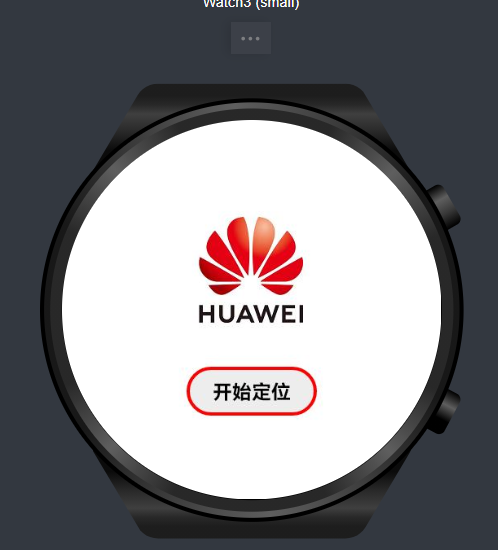
首先,打开entry>src>main>resources>base>graphic>background_ability_main.xml,将代码修改为如下:
<?xml version="1.0" encoding="UTF-8" ?>
<shape xmlns:ohos="http://schemas.huawei.com/res/ohos"
 ohos:shape="rectangle">
 <corners
 ohos:radius="30"/> //设置圆角
 <stroke
 ohos:width="4"
 ohos:color="red"/> //设置边框的厚度与颜色
 <solid
 ohos:color="#EDEDED"/> //设置背景色
</shape>
接着,我们将这张图片复制到剪切板上:

然后打开之前在IDE创建的项目,并打开entry>src>main>resources>base>media,右击icon.png并选择粘贴,之后将所粘贴的图片命名为pic。
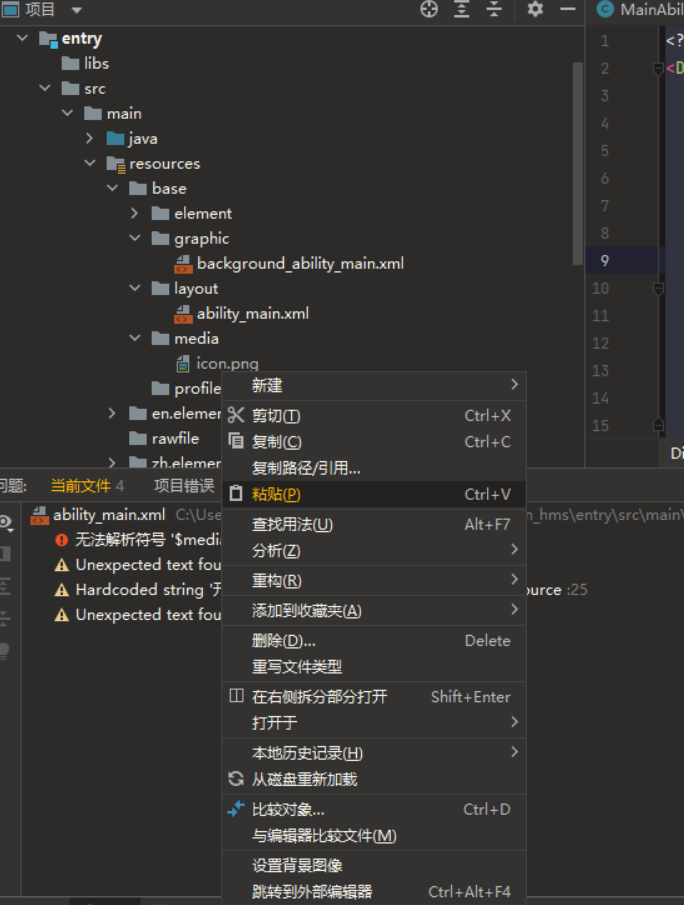
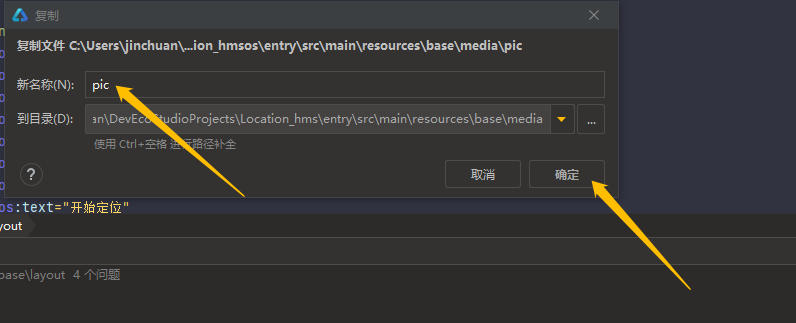
最后,打开entry>src>main>resources>base>layout>ability_main.xml,将代码修改为如下:
<?xml version="1.0" encoding="utf-8"?>
<DirectionalLayout
 xmlns:ohos="http://schemas.huawei.com/res/ohos"
 ohos:height="match_parent"
 ohos:width="match_parent"
 ohos:alignment="center"
 ohos:orientation="vertical">
 <Image
 ohos:height="80vp"
 ohos:width="80vp"
 ohos:image_src="$media:pic"
 ohos:margin="10vp"
 /> //加入一个Image组件
 <Button
 ohos:id="$+id:bn1"
 ohos:height="30vp"
 ohos:width="80vp"
 ohos:background_element="$graphic:background_ability_main"
 ohos:text_color="black"
 ohos:text_weight="700"
 ohos:text_size="12vp"
 ohos:text="开始定位"
 ohos:margin="10vp"
 /> //加入一个Button组件
</DirectionalLayout>
第一个UI界面便设计完成了,打开Previewer可查看效果。
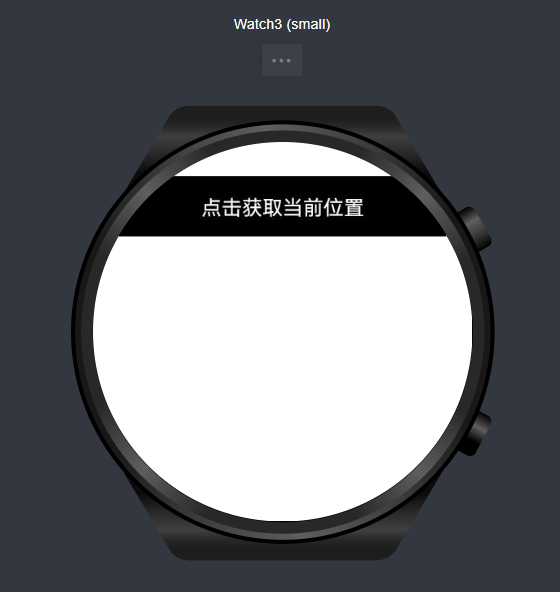
(2) 我们需要制作的第二个UI界面如下:
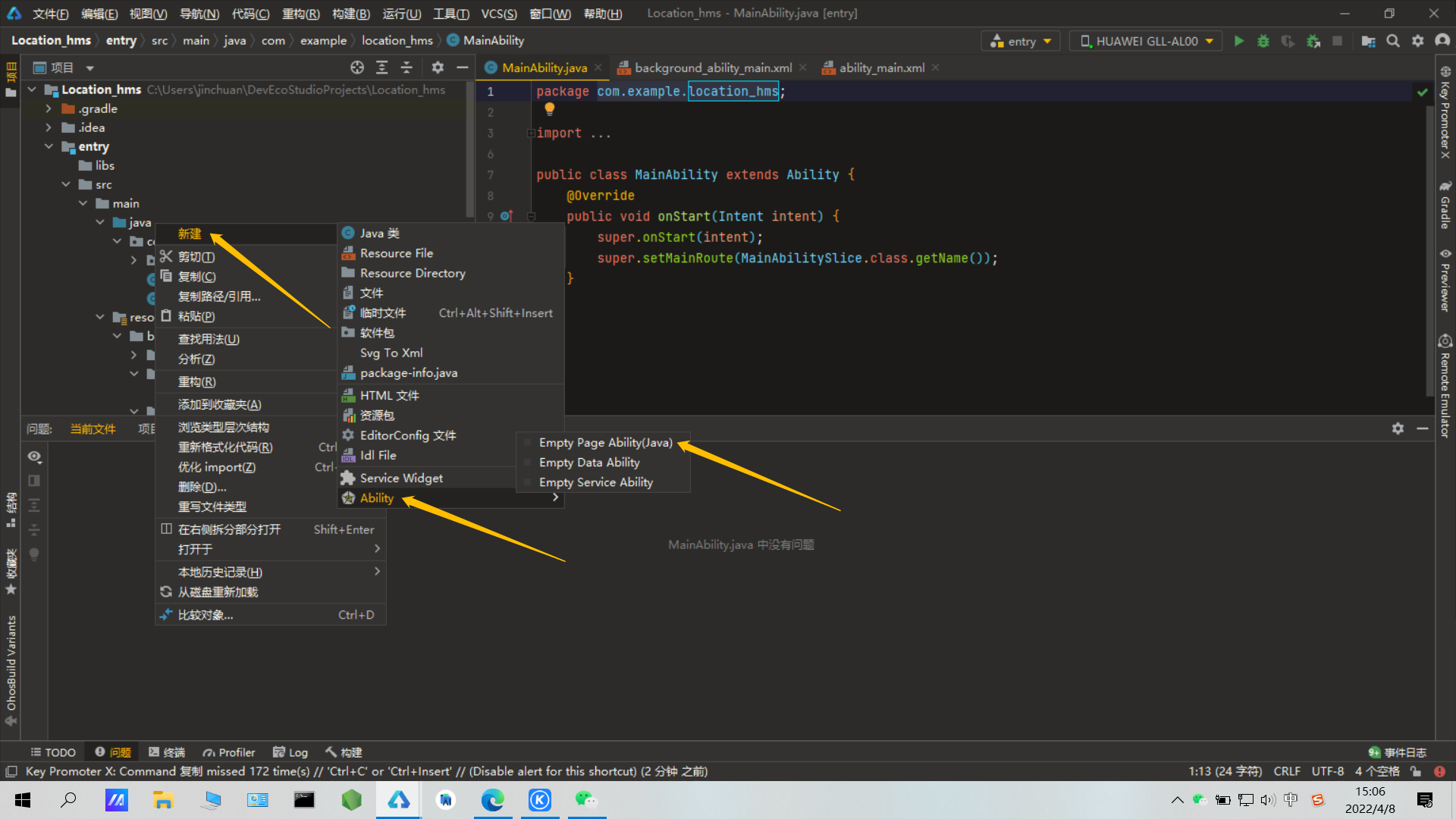
首先,我们需要创建一个新的Page Ability: 打开entry>src>main>Java>com.example.location_hms,右击MainAbility,选择并点击新建>Ability>Empty Page Ability(Java)。
之后,将新建的Page Ability命名如下:
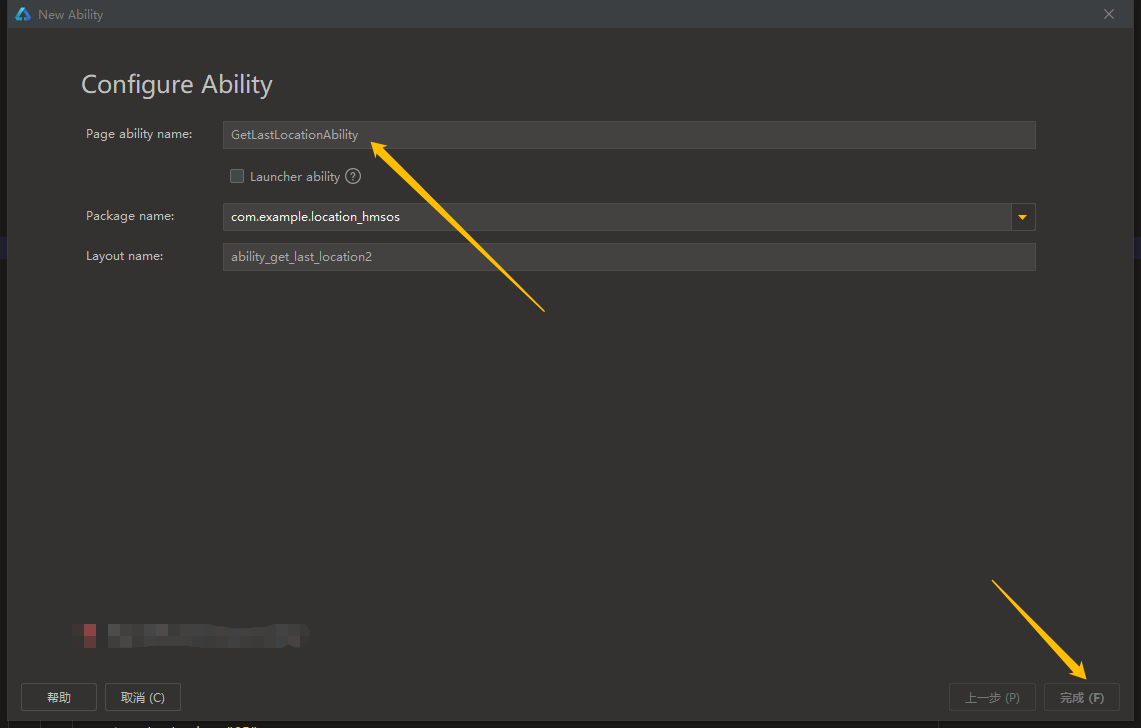
这样,新的Page Ability(即GetLastLocationAbility)便被成功创建,它的默认AbilitySlice(即GetLastLocationAbilitySlice)与xml布局文件(即ability_get_last_location.xml)也随之生成。
此时,打开entry>src>main>resources>base>layout>ability_get_last_location.xml,将代码修改为如下:
<DirectionalLayout
 xmlns:ohos="http://schemas.huawei.com/res/ohos"
 ohos:height="match_parent"
 ohos:width="match_parent"
 ohos:orientation="vertical"
 ohos:padding="32">
 <ScrollView
 ohos:height="match_parent"
 ohos:width="match_parent"> //设置滚轮
 <DirectionalLayout
 ohos:height="match_content"
 ohos:width="match_parent"
 ohos:orientation="vertical">
 <Button
 ohos:id="$+id:btn_getLastLocationWithAddress"
 ohos:height="match_content"
 ohos:width="666vp"
 ohos:background_element="black"
 ohos:layout_alignment="horizontal_center"
 ohos:margin="5vp"
 ohos:padding="10vp"
 ohos:text="点击获取当前位置"
 ohos:text_color="white"
 ohos:text_size="25"/>
 //设置Button组件
 <Text
 ohos:id="$+id:show_location"
 ohos:height="match_content"
 ohos:width="match_parent"
 ohos:margin="5vp"
 ohos:text_color="black"
 ohos:layout_alignment="horizontal_center"
 ohos:text_size="25"
 />
 //设置一个用于显示定位信息的Text组件
 </DirectionalLayout>
 </ScrollView>
</DirectionalLayout>
第二个UI界面便设计完成了,打开Previewer可查看效果。
首先,进入AppGallery Connect的官网——https://developer.huawei.com/consumer/cn/service/josp/agc/index.html#/。
然后,登陆你的华为账号。
登陆完成后,点击我的项目。
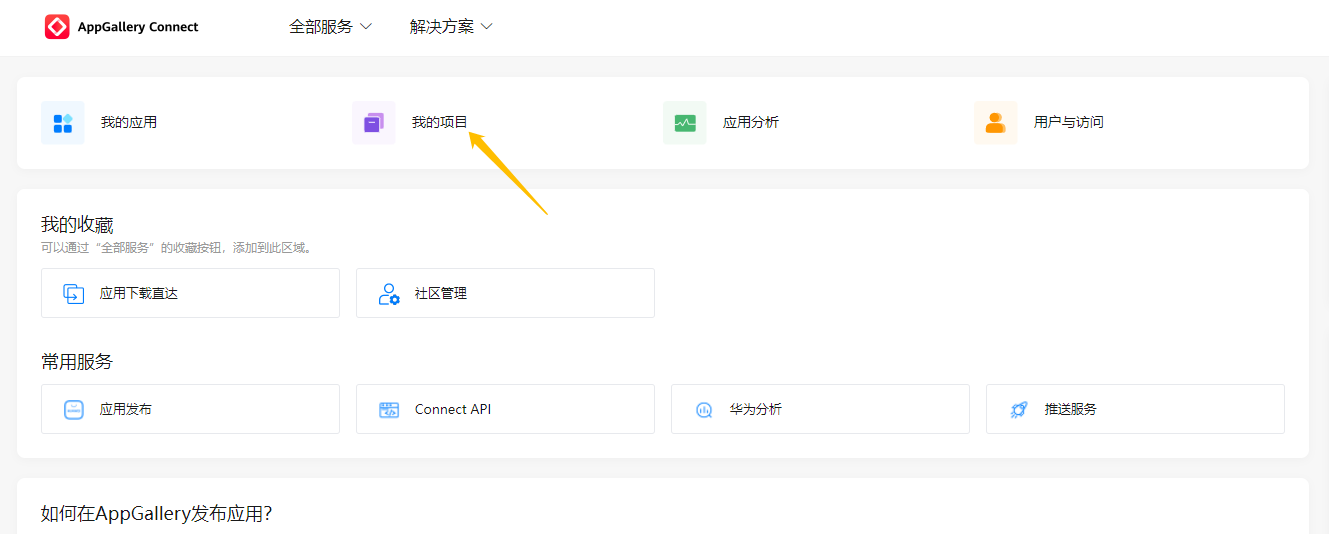
之后,点击添加项目,并自取一个项目名。
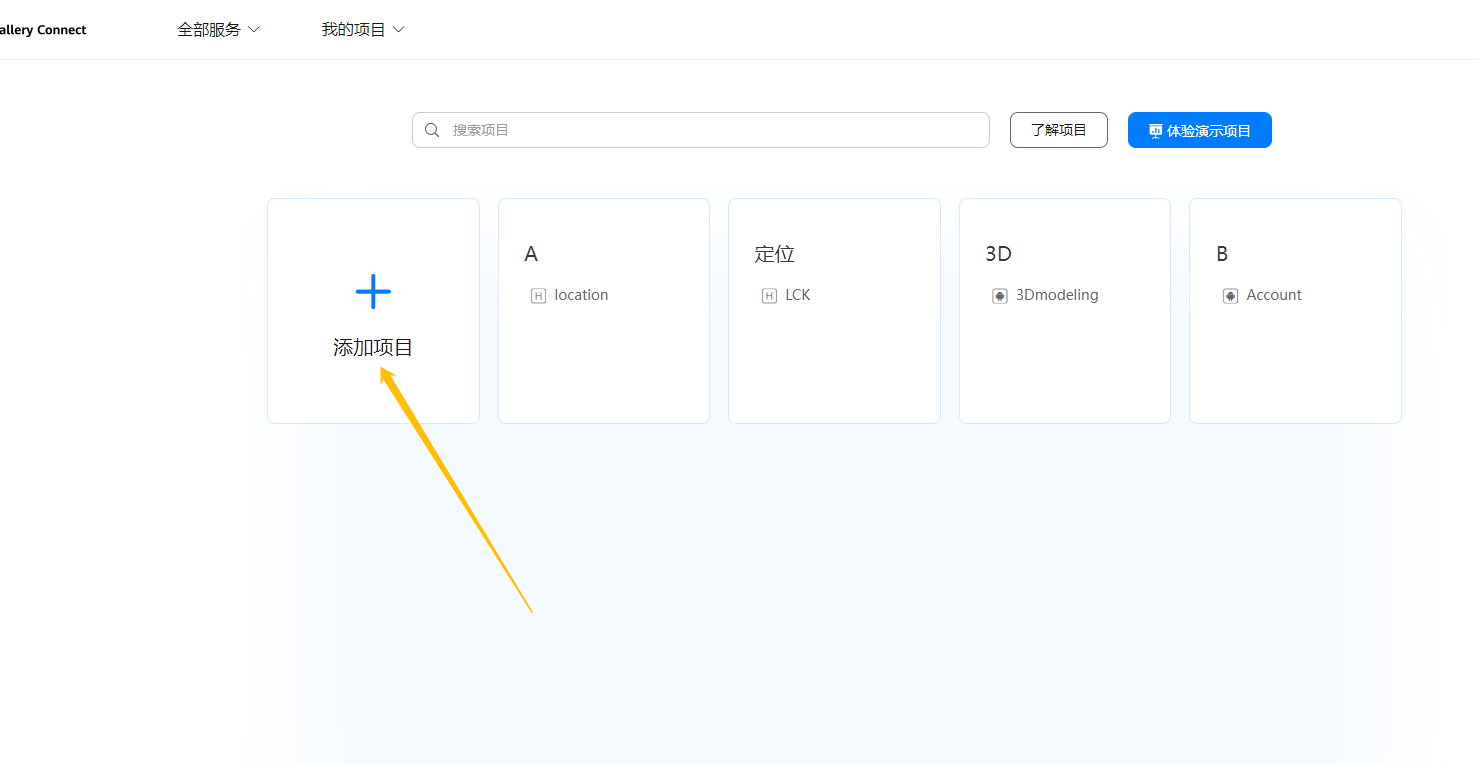
取完项目名后,点击添加应用。
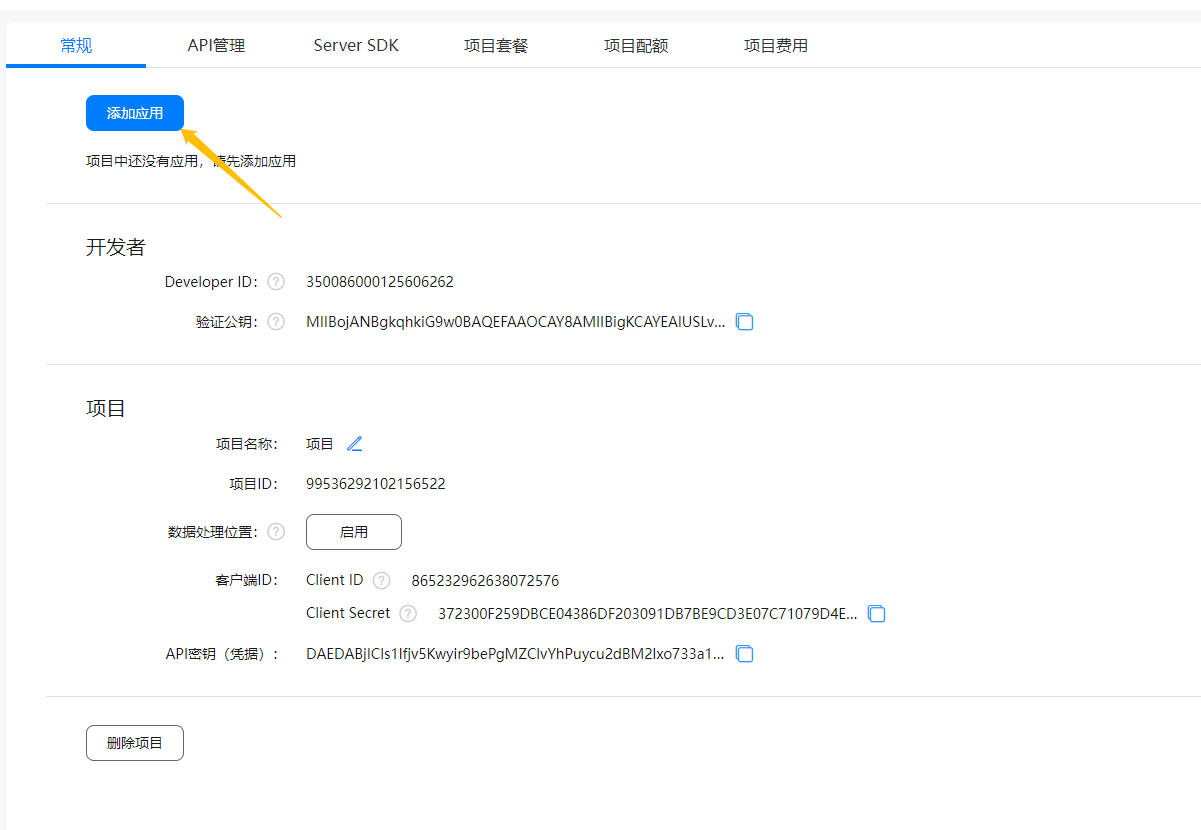
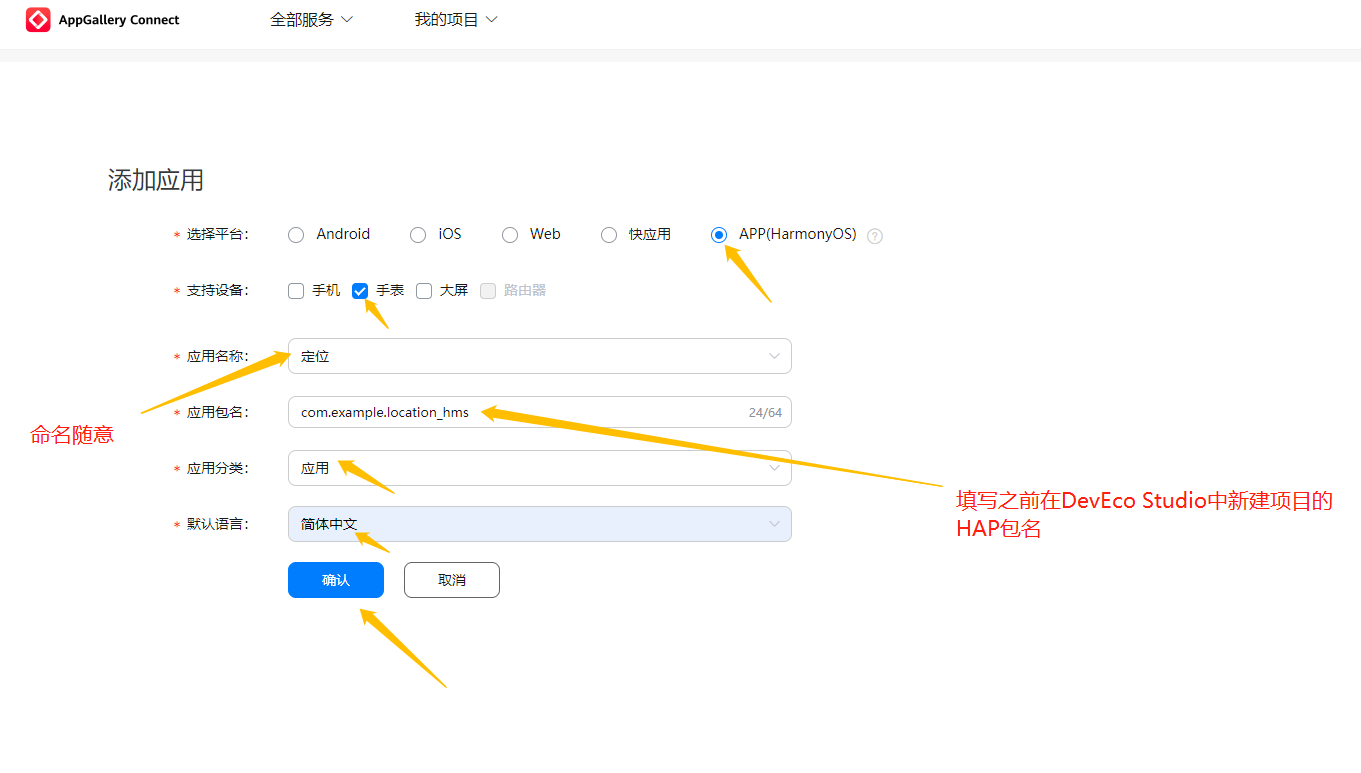
接着,依照下图正确填写关于添加应用的信息。
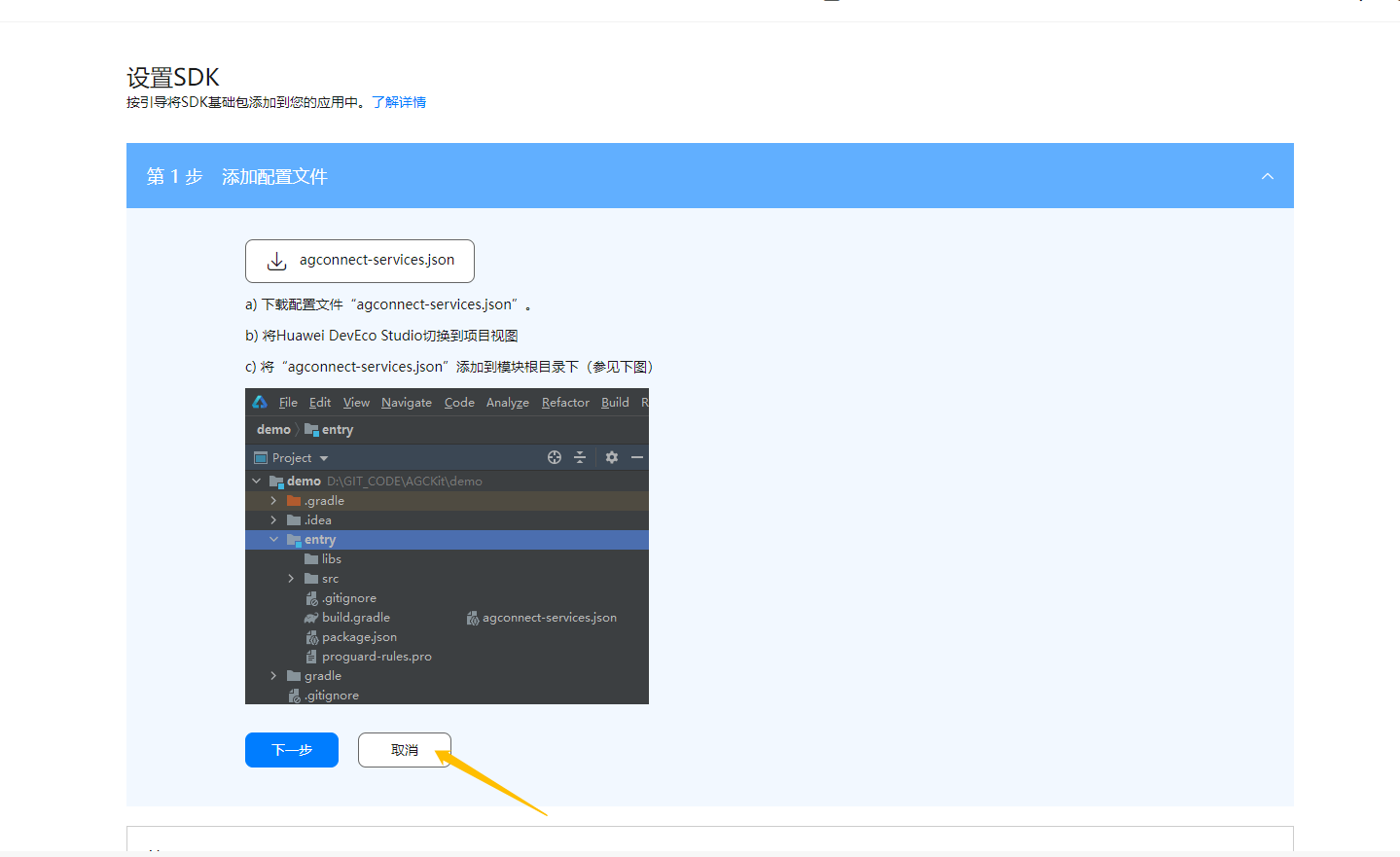
完成之后,网页会给一些操作提示,但我们先点击取消,暂时跳过这些步骤。
最后,点击上方的API管理,并开启定位服务与位置服务。
本期的内容就先分享到这,剩下的内容笔者将在下期的文章里揭晓。

© 版权声明
文章版权归作者所有,未经允许请勿转载。