文章目录
- 在web端博客逛多了,偶然间发现了一种网页背景,线条能自发的运动,并且可以让这些线条向鼠标聚集,就觉得挺有意思的,让我们来试着用鸿蒙JS来实现这个炫酷的背景吧!
-
- 设置画布的大小,背景颜色,以及触摸事件。 <div class="container"> <canvas ref="canvas1" style="width: 100%; height: 100%; background-color: rgb(80, 80, 80);" @touchmove="handleMove"></canvas></div>
- 中学我们就知道,两点成线。页面中的这些线条其实都是点与点之间的连线,粒子运动,就造成了线条的运动,所以我们第一步先用数组来存储页面中的这些粒子。x和y代表粒子的坐标位置,xa和ya分别代表粒子水平方向和垂直方向运动的速度,max代表粒子成线的最小距离条件。 export default { data: { dots: [], // 存储粒子对象的数组 }, // 创建粒子,并存储到数组中 drawBackground() { // 创建粒子,并存储到数组中 for (let i=0; i<180; i++) { // 粒子的位置 let x = Math.random() * 360 let y = Math.random() * 780 // 水平移动的速度,垂直移动的速度 let xa = Math.random() * 0.5 let ya = Math.random() * 0.5 this.dots.push({ x, y, xa, ya, max: 3600 }) } },}
- web端的效果是跟随鼠标的移动,移动端没有鼠标,那我们就让粒子向手指移动的地方靠近。用手指触摸事件来模拟鼠标移动事件。 x代表手指触摸屏幕的横坐标,y代表手指触摸屏幕的纵坐标,max代表粒子向手指触摸屏幕位置靠近的最小距离条件。 handleMove事件的作用,手指触摸屏幕时更新手指的坐标位置。 export default { data: { mouse: { // 手指位置 x: null, y: null, max: 3200 } }, handleMove(e) { this.mouse.x = e.touches[0].localX this.mouse.y = e.touches[0].localY }}
- 前面我们已经准备好的粒子对象数组dots和模拟鼠标的手指对象,现在正戏要开始了。我们设定一个函数,接收canvas上下文对象,用来规定粒子的运动,并且画出粒子之间的线条。 我们创建一个新的数组nDots,用来存储手指对象和所有的粒子对象,接着遍历所有的粒子,规定粒子的运动。 当粒子运动到画布的边界时,我们要做边界处理,让粒子向反方向运动。 用上下文对象绘制粒子,为了让线条连线处不突兀,把粒子颜色也设置为背景颜色。 接着开始遍历nDots数组,若遍历到的是同一个粒子,则直接进入下一次循环。用勾股定理算出粒子之间的距离dDistance,当dDistance小于粒子间连线的最小距离时,绘制粒子间的线条;如果是手指对象,当dDistance小于向手指位置靠近的最小距离时,粒子向手指触摸位置靠近。 最后,我们删除比较过的粒子对象。 draw(ctx) { const self = this; // 清空整个画布 ctx.clearRect(0, 0, 360, 780); // 粒子和鼠标的结合,把鼠标数组添加到粒子数组中 const nDots = [this.mouse, ...this.dots]; // 粒子运动 this.dots.forEach(function (dot) { dot.x += dot.xa; dot.y += dot.ya; // 粒子运动的边界(画布),反弹 dot.xa *= (dot.x > 360 || dot.x < 0) ? -1 : 1; dot.ya *= (dot.y > 780 || dot.y < 0) ? -1 : 1; // 绘制粒子 ctx.fillRect(dot.x, dot.y, 1, 1); ctx.fillStyle = "#282828"; // 连线 for (let i=0; i<nDots.length; i++) { let d = nDots[i]; if(d == dot) { continue; } // 计算粒子的距离 let dx = dot.x - d.x; let dy = dot.y - d.y; let dDistance = Math.pow(dx, 2) + Math.pow(dy, 2); // 连线操作 if (dDistance < d.max) { // 处理触摸事件 if (d == self.mouse && dDistance > d.max / 2) { dot.x -= dx * 0.03; dot.y -= dy * 0.03; } // 绘制线条 ctx.beginPath(); ctx.lineWidth = 0.7; ctx.strokeStyle = 'rgba(80, 130, 189, 0.9)'; // 起始位置 ctx.moveTo(dot.x, dot.y); // 结束位置 ctx.lineTo(d.x, d.y); ctx.stroke(); ctx.closePath(); } } // 删除比较过的粒子 nDots.splice(nDots.indexOf(dot), 1); })},
- 最后,我们看看有没有生效,在onShow方法中调用drawBackground方法,点亮背景。 export default { onShow() { this.drawBackground(); }, drawBackground() { // 创建粒子,并存储到数组中 for (let i=0; i<180; i++) { // 粒子的位置 let x = Math.random() * 360; let y = Math.random() * 780; // 水平移动的速度,垂直移动的速度 let xa = Math.random() * 0.5; let ya = Math.random() * 0.5; this.dots.push({ x, y, xa, ya, max: 3600 }); // 两个粒子相吸的最小距离 } const can = this.$refs.canvas1; const ctx = can.getContext('2d'); setInterval(() => { this.draw(ctx); }, 1000 / 60); }}
- 处理粒子向手指对象运动时,为了让速度不会太快,增加条件dDistance > d.max / 2。 当粒子运动边界时,需要给粒子一个反方向的速度。 在onInit生命周期中无法拿到canvas的dom,需要在onShow方法中获取。 粒子运动的速度看起来不太柔和,需要调试下参数。 想了解更多关于开源的内容,请访问: 51CTO 开源基础软件社区 https://ost.51cto.com。
在web端博客逛多了,偶然间发现了一种网页背景,线条能自发的运动,并且可以让这些线条向鼠标聚集,就觉得挺有意思的,让我们来试着用鸿蒙JS来实现这个炫酷的背景吧!
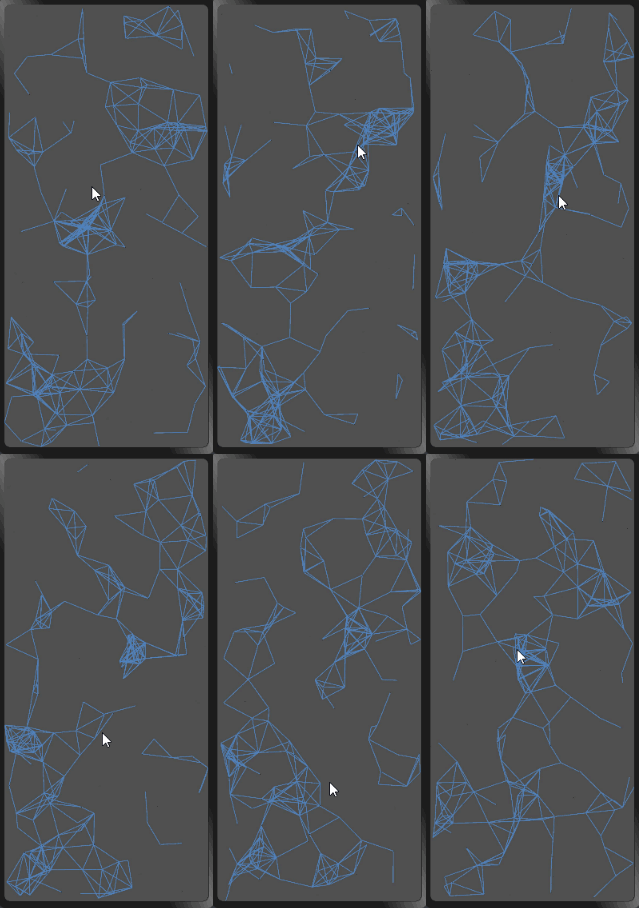
设置画布的大小,背景颜色,以及触摸事件。
<div class="container">
 <canvas ref="canvas1" style="width: 100%; height: 100%; background-color: rgb(80, 80, 80);" @touchmove="handleMove"></canvas>
</div>
中学我们就知道,两点成线。页面中的这些线条其实都是点与点之间的连线,粒子运动,就造成了线条的运动,所以我们第一步先用数组来存储页面中的这些粒子。x和y代表粒子的坐标位置,xa和ya分别代表粒子水平方向和垂直方向运动的速度,max代表粒子成线的最小距离条件。
export default {
 data: {
 dots: [], // 存储粒子对象的数组
 },
 // 创建粒子,并存储到数组中
 drawBackground() {
 // 创建粒子,并存储到数组中
 for (let i=0; i<180; i++) {
 // 粒子的位置
 let x = Math.random() * 360
 let y = Math.random() * 780
 // 水平移动的速度,垂直移动的速度
 let xa = Math.random() * 0.5
 let ya = Math.random() * 0.5
 this.dots.push({ x, y, xa, ya, max: 3600 })
 }
 },
}
web端的效果是跟随鼠标的移动,移动端没有鼠标,那我们就让粒子向手指移动的地方靠近。用手指触摸事件来模拟鼠标移动事件。
x代表手指触摸屏幕的横坐标,y代表手指触摸屏幕的纵坐标,max代表粒子向手指触摸屏幕位置靠近的最小距离条件。
handleMove事件的作用,手指触摸屏幕时更新手指的坐标位置。
export default {
 data: {
 mouse: { // 手指位置
 x: null,
 y: null,
 max: 3200
 }
 },
 handleMove(e) {
 this.mouse.x = e.touches[0].localX
 this.mouse.y = e.touches[0].localY
 }
}
前面我们已经准备好的粒子对象数组dots和模拟鼠标的手指对象,现在正戏要开始了。我们设定一个函数,接收canvas上下文对象,用来规定粒子的运动,并且画出粒子之间的线条。
我们创建一个新的数组nDots,用来存储手指对象和所有的粒子对象,接着遍历所有的粒子,规定粒子的运动。
当粒子运动到画布的边界时,我们要做边界处理,让粒子向反方向运动。
用上下文对象绘制粒子,为了让线条连线处不突兀,把粒子颜色也设置为背景颜色。
接着开始遍历nDots数组,若遍历到的是同一个粒子,则直接进入下一次循环。用勾股定理算出粒子之间的距离dDistance,当dDistance小于粒子间连线的最小距离时,绘制粒子间的线条;如果是手指对象,当dDistance小于向手指位置靠近的最小距离时,粒子向手指触摸位置靠近。
最后,我们删除比较过的粒子对象。
draw(ctx) {
 const self = this;
 // 清空整个画布
 ctx.clearRect(0, 0, 360, 780);
 // 粒子和鼠标的结合,把鼠标数组添加到粒子数组中
 const nDots = [this.mouse, ...this.dots];
 // 粒子运动
 this.dots.forEach(function (dot) {
 dot.x += dot.xa;
 dot.y += dot.ya;
 // 粒子运动的边界(画布),反弹
 dot.xa *= (dot.x > 360 || dot.x < 0) ? -1 : 1;
 dot.ya *= (dot.y > 780 || dot.y < 0) ? -1 : 1;
 // 绘制粒子
 ctx.fillRect(dot.x, dot.y, 1, 1);
 ctx.fillStyle = "#282828";
 // 连线
 for (let i=0; i<nDots.length; i++) {
 let d = nDots[i];
 if(d == dot) {
 continue;
 }
 // 计算粒子的距离
 let dx = dot.x - d.x;
 let dy = dot.y - d.y;
 let dDistance = Math.pow(dx, 2) + Math.pow(dy, 2);
 // 连线操作
 if (dDistance < d.max) {
 // 处理触摸事件
 if (d == self.mouse && dDistance > d.max / 2) {
 dot.x -= dx * 0.03;
 dot.y -= dy * 0.03;
 }
 // 绘制线条
 ctx.beginPath();
 ctx.lineWidth = 0.7;
 ctx.strokeStyle = 'rgba(80, 130, 189, 0.9)';
 // 起始位置
 ctx.moveTo(dot.x, dot.y);
 // 结束位置
 ctx.lineTo(d.x, d.y);
 ctx.stroke();
 ctx.closePath();
 }
 }
 // 删除比较过的粒子
 nDots.splice(nDots.indexOf(dot), 1);
 })
},
最后,我们看看有没有生效,在onShow方法中调用drawBackground方法,点亮背景。
export default {
 onShow() {
 this.drawBackground();
 },
 drawBackground() {
 // 创建粒子,并存储到数组中
 for (let i=0; i<180; i++) {
 // 粒子的位置
 let x = Math.random() * 360;
 let y = Math.random() * 780;

 // 水平移动的速度,垂直移动的速度
 let xa = Math.random() * 0.5;
 let ya = Math.random() * 0.5;

 this.dots.push({ x, y, xa, ya, max: 3600 }); // 两个粒子相吸的最小距离
 }
 const can = this.$refs.canvas1;
 const ctx = can.getContext('2d');
 setInterval(() => {
 this.draw(ctx);
 }, 1000 / 60);
 }
}
- 处理粒子向手指对象运动时,为了让速度不会太快,增加条件dDistance > d.max / 2。
- 当粒子运动边界时,需要给粒子一个反方向的速度。
- 在onInit生命周期中无法拿到canvas的dom,需要在onShow方法中获取。
- 粒子运动的速度看起来不太柔和,需要调试下参数。
© 版权声明
文章版权归作者所有,未经允许请勿转载。