
文章目录
- 本项目基于OpenHarmony的ArkUI框架:TS扩展的声明式开发范式,关于语法和概念直接看官网官方文档地址:基于TS扩展的声明式开发范式。 工具版本: DevEco Studio 3.0 Beta4。 SDK版本: 3.1.6.6(API Version 8 Release)。
- UI状态:@Prop、@Link、@Watch。 形状裁剪属性: clip。 显式动画:animateTo。
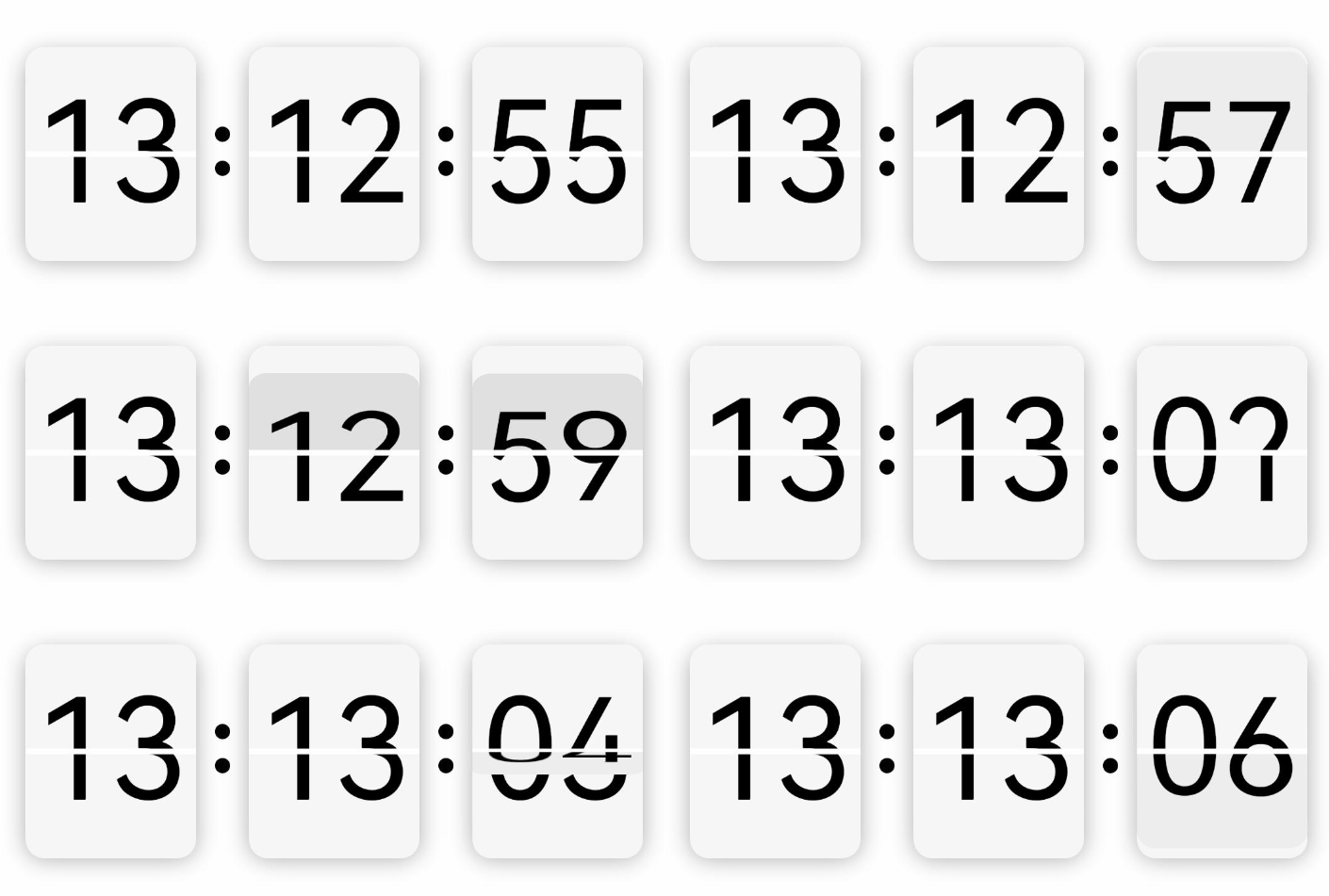
- 时钟翻页效果,用到四个Text组件,使用堆叠容器Stack,底层:用到两个裁剪过后的Text上下显示;顶层:也是用两个裁剪后的Text做动画效果,进行X轴角度旋转。
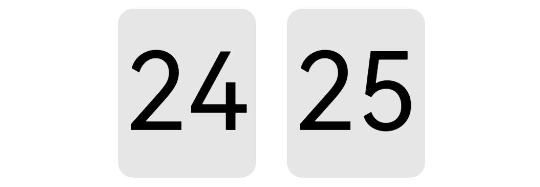
- 裁剪前: 裁剪后: 使用形状裁剪属性clip 裁剪Text上半部:从坐标(0,0)往下裁剪,clip(new Rect({ width: this.width, height: this.height / 2 }))。 裁剪Text下半部:从坐标(0,height / 2)往下裁剪,clip(new Path().commands(this.bottomPath))。 @Entry@Componentstruct Test { private width = 90 private height = 110 private fontSize = 70 private defaultBgColor = '#ffe6e6e6' private borderRadius = 10 // 下半部裁剪路径 private bottomPath = `M0 ${vp2px(this.height / 2)} L${vp2px(this.width)} ${vp2px(this.height / 2)} L${vp2px(this.width)} ${vp2px(this.height)} L0 ${vp2px(this.height)} Z` build() { Row() { Text('24') .width(this.width) .height(this.height) .fontColor(Color.Black) .fontSize(this.fontSize) .textAlign(TextAlign.Center) .borderRadius(this.borderRadius) .backgroundColor(this.defaultBgColor) .clip(new Rect({ width: this.width, height: this.height / 2 })) Text('25') .margin({left:20}) .width(this.width) .height(this.height) .fontColor(Color.Black) .fontSize(this.fontSize) .textAlign(TextAlign.Center) .borderRadius(this.borderRadius) .backgroundColor(this.defaultBgColor) .clip(new Path().commands(this.bottomPath)) }.width('100%') .height('100%') .justifyContent(FlexAlign.Center) }}
- 四个裁剪后的Text放入到堆叠容器中(代码片段)。 Stack() { // 底层文字上部 Text(this.newValue) ...... .clip(new Rect({ width: this.width, height: this.height / 2 })) // 底层文字下部 Text(this.oldValue) ...... .clip(new Path().commands(this.bottomPath)) // 顶层文字上部动画 Text(this.oldValue) ...... .clip(new Rect({ width: this.width, height: this.height / 2 })) .rotate({ x: 1, centerY: '50%', angle: this.angleTop }) // 顶层文字下部动画 Text(this.newValue) ...... .margin({ top: 3 }) .clip(new Path().commands(this.bottomPath)) .rotate({ x: 1, centerY: '50%', angle: this.angleBottom }) }
- 先顶层上部的动画,上部旋转角度从0到90停止,接下来执行顶层下部的动画,下部旋转角度从-90到0停止,停止完后重置初始状态,上部旋转角度 = 0、下部旋转角度 = -90(代码片段)。 /** * 启动顶层文字上部动画 */ startTopAnimate() { animateTo({ duration: 400, onFinish: () => { this.startBottomAnimate() this.animateBgColor = '#ffededed' } }, () => { this.angleTop = 90 this.animateBgColor = '#ffc5c5c5' }) } /** * 启动顶层文字下部动画 */ startBottomAnimate() { animateTo({ duration: 400, onFinish: () => { this.angleTop = 0 this.angleBottom = -90 this.animateBgColor = this.defaultBgColor this.oldValue = this.newValue } }, () => { this.angleBottom = 0 this.animateBgColor = this.defaultBgColor }) }
- 翻页逻辑封装成组件,提供给外部调用,根据外部传入的双向数据绑定:newValue,监听数据变化,有变化则启动翻页动画(代码片段)。 @Componentexport struct FlipPage { // 顶层上部动画角度 @State angleTop: number = 0 // 顶层下部动画角度 @State angleBottom: number = -90 // 旧值 @Prop oldValue: string // 新值,加入监听 @Link @Watch('valueChange') newValue: string /** * 监听新值变化 */ valueChange() { if (this.oldValue === this.newValue) return this.startTopAnimate() } build() { Stack() { // 底层文字上部 Text(this.newValue) ...... .clip(new Rect({ width: this.width, height: this.height / 2 })) // 底层文字下部 Text(this.oldValue) ...... .clip(new Path().commands(this.bottomPath)) // 顶层文字上部动画 Text(this.oldValue) ...... .clip(new Rect({ width: this.width, height: this.height / 2 })) .rotate({ x: 1, centerY: '50%', angle: this.angleTop }) // 顶层文字下部动画 Text(this.newValue) ...... .margin({ top: 3 }) .clip(new Path().commands(this.bottomPath)) .rotate({ x: 1, centerY: '50%', angle: this.angleBottom }) } } /** * 启动顶层文字上部动画 */ startTopAnimate() { ...... }
- 界面加载成功后,开启循环定时器setInterval、间隔1秒更新时间。更改newValue的值,翻页组件内部进行动画翻页。 import { FlipPage } from '../componet/FlipPage'@Entry@Componentstruct Index { // 小时-旧值 @State oldHours: string = '' // 小时-新值 @State newHours: string = '' // 分钟-旧值 @State oldMinutes: string = '' // 分钟-新值 @State newMinutes: string = '' // 秒数-旧值 @State oldSeconds: string = '' // 秒数-新值 @State newSeconds: string = '' @Builder Colon() { Column() { Circle().width(8).height(8).fill(Color.Black) Circle().width(8).height(8).fill(Color.Black).margin({ top: 10 }) }.padding(10) } build() { Row() { // 翻页组件-显示小时 FlipPage({ oldValue: this.oldHours, newValue: $newHours }) // 冒号 this.Colon() // 翻页组件-显示分钟 FlipPage({ oldValue: this.oldMinutes, newValue: $newMinutes }) // 冒号 this.Colon() // 翻页组件-显示秒数 FlipPage({ oldValue: this.oldSeconds, newValue: $newSeconds }) } .justifyContent(FlexAlign.Center) .width('100%') .height('100%') .onAppear(() => { // 开启定时器 this.initDate() setInterval(() => { this.updateDate() }, 1000) }) } /** * 初始化时间 */ initDate() { let date = new Date() // 设置小时 this.oldHours = this.format(date.getHours()) // 设置分钟 this.oldMinutes = this.format(date.getMinutes()) // 设置秒数 this.oldSeconds = this.format(date.getSeconds()) // 设置新的秒数 this.newSeconds = date.getSeconds() + 1 === 60 ? '00' : this.format(date.getSeconds() + 1) } /** * 更新时间 */ updateDate() { let date = new Date() console.log(`${date.getHours()}时${date.getMinutes()}分${date.getSeconds()}秒`) // 当新值改变,才有动画 if (date.getSeconds() === 59) { this.newSeconds = '00' this.newMinutes = date.getMinutes() + 1 === 60 ? '00' : this.format(date.getMinutes() + 1) if (date.getMinutes() === 59) { this.newHours = date.getHours() + 1 === 24 ? '00' : this.format(date.getHours() + 1) } } else { this.newSeconds = this.format(date.getSeconds() + 1) } } /** * 不足十位前面补零 */ format(param) { let value = '' + param if (param < 10) { value = '0' + param } return value }}
- 根据上面的实现思路和5个步骤流程,相信你也掌握了翻页时钟原理,拆分成一步一步还是很简单的,最主要还是对API的熟悉和声明式语法的掌握。HarmonyOS的API是根据OpenHarmony去更新的,两者区别语法都一样,只是OpenHarmony的API比较新,功能比较完善和成熟的,所以本项目直接使用OpenHarmony SDK开发。 项目地址:OpenHarmony - ArkUI(TS)开发翻页时钟。 想了解更多关于开源的内容,请访问: 51CTO 开源基础软件社区 https://ost.51cto.com。

本项目基于OpenHarmony的ArkUI框架:TS扩展的声明式开发范式,关于语法和概念直接看官网官方文档地址:基于TS扩展的声明式开发范式。
工具版本: DevEco Studio 3.0 Beta4。
SDK版本: 3.1.6.6(API Version 8 Release)。
- UI状态:@Prop、@Link、@Watch。
- 形状裁剪属性: clip。
- 显式动画:animateTo。
时钟翻页效果,用到四个Text组件,使用堆叠容器Stack,底层:用到两个裁剪过后的Text上下显示;顶层:也是用两个裁剪后的Text做动画效果,进行X轴角度旋转。
裁剪前:
裁剪后:
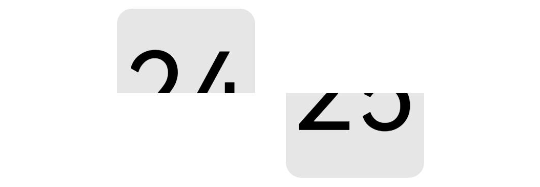
使用形状裁剪属性clip
- 裁剪Text上半部:从坐标(0,0)往下裁剪,clip(new Rect({ width: this.width, height: this.height / 2 }))。
- 裁剪Text下半部:从坐标(0,height / 2)往下裁剪,clip(new Path().commands(this.bottomPath))。
@Entry
@Component
struct Test {
 private width = 90
 private height = 110
 private fontSize = 70
 private defaultBgColor = '#ffe6e6e6'
 private borderRadius = 10
 // 下半部裁剪路径
 private bottomPath = `M0 ${vp2px(this.height / 2)}
 L${vp2px(this.width)} ${vp2px(this.height / 2)}
 L${vp2px(this.width)} ${vp2px(this.height)}
 L0 ${vp2px(this.height)} Z`
 build() {
 Row() {
 Text('24')
 .width(this.width)
 .height(this.height)
 .fontColor(Color.Black)
 .fontSize(this.fontSize)
 .textAlign(TextAlign.Center)
 .borderRadius(this.borderRadius)
 .backgroundColor(this.defaultBgColor)
 .clip(new Rect({ width: this.width, height: this.height / 2 }))
 Text('25')
 .margin({left:20})
 .width(this.width)
 .height(this.height)
 .fontColor(Color.Black)
 .fontSize(this.fontSize)
 .textAlign(TextAlign.Center)
 .borderRadius(this.borderRadius)
 .backgroundColor(this.defaultBgColor)
 .clip(new Path().commands(this.bottomPath))
 }.width('100%')
 .height('100%')
 .justifyContent(FlexAlign.Center)
 }
}
四个裁剪后的Text放入到堆叠容器中(代码片段)。
Stack() {
 // 底层文字上部
 Text(this.newValue)
 ......
 .clip(new Rect({ width: this.width, height: this.height / 2 }))
 // 底层文字下部
 Text(this.oldValue)
 ......
 .clip(new Path().commands(this.bottomPath))
 // 顶层文字上部动画
 Text(this.oldValue)
 ......
 .clip(new Rect({ width: this.width, height: this.height / 2 }))
 .rotate({ x: 1, centerY: '50%', angle: this.angleTop })
 // 顶层文字下部动画
 Text(this.newValue)
 ......
 .margin({ top: 3 })
 .clip(new Path().commands(this.bottomPath))
 .rotate({ x: 1, centerY: '50%', angle: this.angleBottom })
 }
先顶层上部的动画,上部旋转角度从0到90停止,接下来执行顶层下部的动画,下部旋转角度从-90到0停止,停止完后重置初始状态,上部旋转角度 = 0、下部旋转角度 = -90(代码片段)。
/**
 * 启动顶层文字上部动画
 */
 startTopAnimate() {
 animateTo({
 duration: 400,
 onFinish: () => {
 this.startBottomAnimate()
 this.animateBgColor = '#ffededed'
 }
 }, () => {
 this.angleTop = 90
 this.animateBgColor = '#ffc5c5c5'
 })
 }
 /**
 * 启动顶层文字下部动画
 */
 startBottomAnimate() {
 animateTo({
 duration: 400,
 onFinish: () => {
 this.angleTop = 0
 this.angleBottom = -90
 this.animateBgColor = this.defaultBgColor
 this.oldValue = this.newValue
 }
 }, () => {
 this.angleBottom = 0
 this.animateBgColor = this.defaultBgColor
 })
 }
翻页逻辑封装成组件,提供给外部调用,根据外部传入的双向数据绑定:newValue,监听数据变化,有变化则启动翻页动画(代码片段)。
@Component
export struct FlipPage {
 // 顶层上部动画角度
 @State angleTop: number = 0
 // 顶层下部动画角度
 @State angleBottom: number = -90
 // 旧值
 @Prop oldValue: string
 // 新值,加入监听
 @Link @Watch('valueChange') newValue: string
 /**
 * 监听新值变化
 */
 valueChange() {
 if (this.oldValue === this.newValue) return
 this.startTopAnimate()
 }
 build() {
 Stack() {
 // 底层文字上部
 Text(this.newValue)
 ......
 .clip(new Rect({ width: this.width, height: this.height / 2 }))
 // 底层文字下部
 Text(this.oldValue)
 ......
 .clip(new Path().commands(this.bottomPath))
 // 顶层文字上部动画
 Text(this.oldValue)
 ......
 .clip(new Rect({ width: this.width, height: this.height / 2 }))
 .rotate({ x: 1, centerY: '50%', angle: this.angleTop })
 // 顶层文字下部动画
 Text(this.newValue)
 ......
 .margin({ top: 3 })
 .clip(new Path().commands(this.bottomPath))
 .rotate({ x: 1, centerY: '50%', angle: this.angleBottom })
 }
 }
 /**
 * 启动顶层文字上部动画
 */
 startTopAnimate() {
 ......
 }
界面加载成功后,开启循环定时器setInterval、间隔1秒更新时间。更改newValue的值,翻页组件内部进行动画翻页。
import { FlipPage } from '../componet/FlipPage'
@Entry
@Component
struct Index {
 // 小时-旧值
 @State oldHours: string = ''
 // 小时-新值
 @State newHours: string = ''
 // 分钟-旧值
 @State oldMinutes: string = ''
 // 分钟-新值
 @State newMinutes: string = ''
 // 秒数-旧值
 @State oldSeconds: string = ''
 // 秒数-新值
 @State newSeconds: string = ''
 @Builder Colon() {
 Column() {
 Circle().width(8).height(8).fill(Color.Black)
 Circle().width(8).height(8).fill(Color.Black).margin({ top: 10 })
 }.padding(10)
 }
 build() {
 Row() {
 // 翻页组件-显示小时
 FlipPage({ oldValue: this.oldHours, newValue: $newHours })
 // 冒号
 this.Colon()
 // 翻页组件-显示分钟
 FlipPage({ oldValue: this.oldMinutes, newValue: $newMinutes })
 // 冒号
 this.Colon()
 // 翻页组件-显示秒数
 FlipPage({ oldValue: this.oldSeconds, newValue: $newSeconds })
 }
 .justifyContent(FlexAlign.Center)
 .width('100%')
 .height('100%')
 .onAppear(() => {
 // 开启定时器
 this.initDate()
 setInterval(() => {
 this.updateDate()
 }, 1000)
 })
 }
 /**
 * 初始化时间
 */
 initDate() {
 let date = new Date()
 // 设置小时
 this.oldHours = this.format(date.getHours())
 // 设置分钟
 this.oldMinutes = this.format(date.getMinutes())
 // 设置秒数
 this.oldSeconds = this.format(date.getSeconds())
 // 设置新的秒数
 this.newSeconds = date.getSeconds() + 1 === 60 ? '00' : this.format(date.getSeconds() + 1)
 }
 /**
 * 更新时间
 */
 updateDate() {
 let date = new Date()
 console.log(`${date.getHours()}时${date.getMinutes()}分${date.getSeconds()}秒`)
 // 当新值改变,才有动画
 if (date.getSeconds() === 59) {
 this.newSeconds = '00'
 this.newMinutes = date.getMinutes() + 1 === 60 ? '00' : this.format(date.getMinutes() + 1)
 if (date.getMinutes() === 59) {
 this.newHours = date.getHours() + 1 === 24 ? '00' : this.format(date.getHours() + 1)
 }
 } else {
 this.newSeconds = this.format(date.getSeconds() + 1)
 }
 }
 /**
 * 不足十位前面补零
 */
 format(param) {
 let value = '' + param
 if (param < 10) {
 value = '0' + param
 }
 return value
 }
}
根据上面的实现思路和5个步骤流程,相信你也掌握了翻页时钟原理,拆分成一步一步还是很简单的,最主要还是对API的熟悉和声明式语法的掌握。HarmonyOS的API是根据OpenHarmony去更新的,两者区别语法都一样,只是OpenHarmony的API比较新,功能比较完善和成熟的,所以本项目直接使用OpenHarmony SDK开发。
项目地址:OpenHarmony - ArkUI(TS)开发翻页时钟。
© 版权声明
文章版权归作者所有,未经允许请勿转载。