
文章目录
- 本实验使用Unionpi Tiger开发套件并烧录OpenHarmony-3.1-Release,Windows 安装DevEco Studio 3.0.0.900。 实现一个滚动抽奖页面小游戏,Unionpi Tiger开发板实际演示效果如下。 点击开始进行滚动,点击停止依次停止三个滚动框。
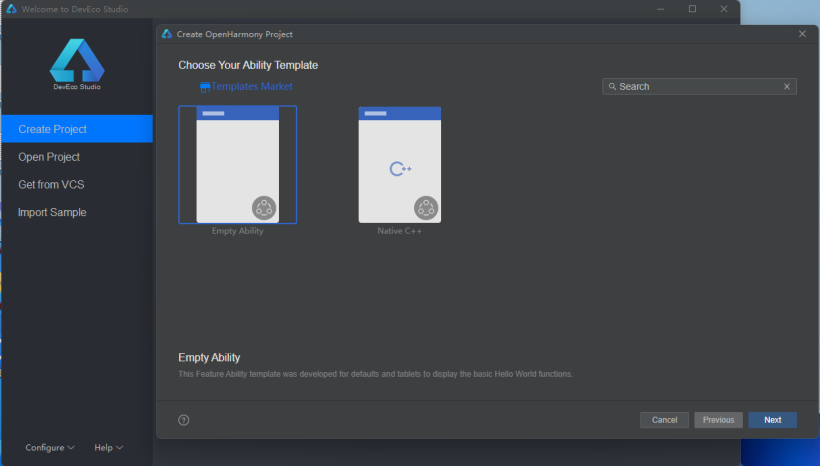
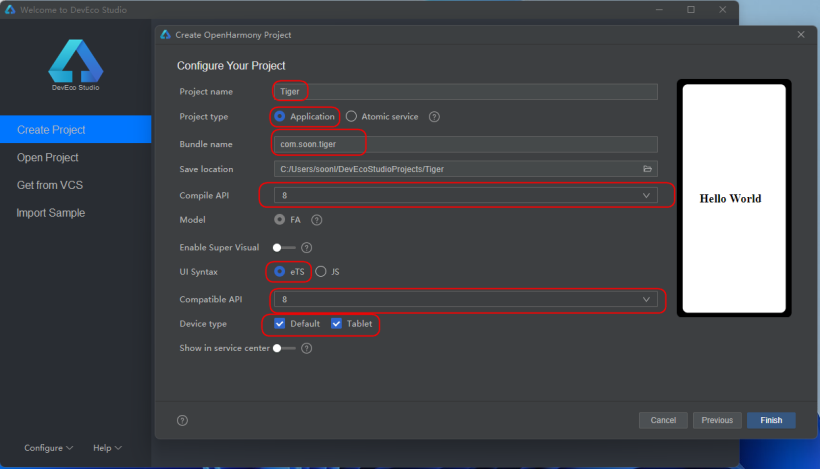
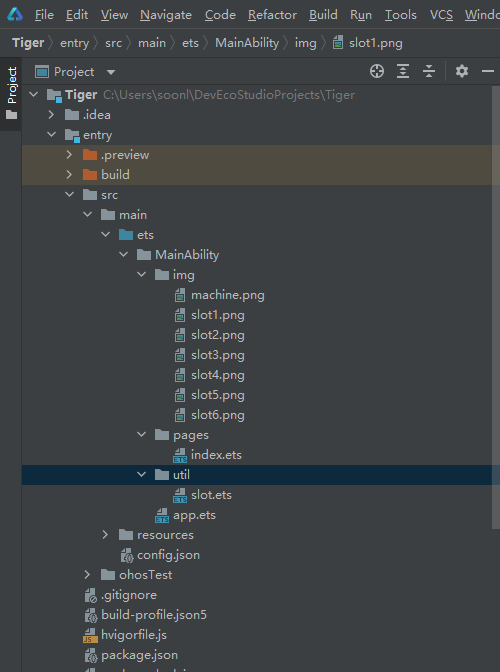
- 打开DevEco Studio 3.0.0.900新建一个Empty Abiliity 工程,如下图: 工程配置参考如下: 整个工程目录结果预览(部分目录手动添加见下文说明)。
- 因为三个滚动图片是可以复用的,所以我们直接写成组件的方式,实现方法如下:
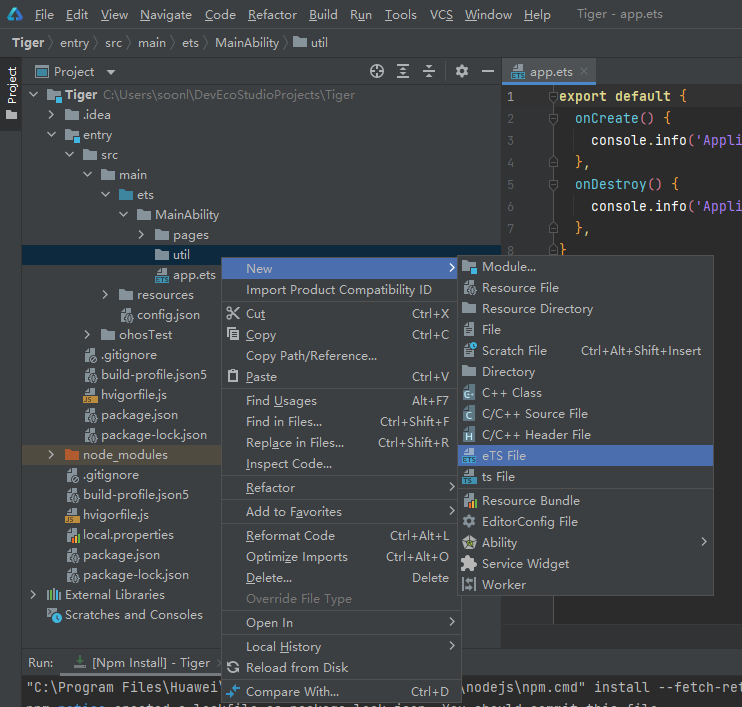
- 在entry/src/main/ets/MainAbility下新建util文件夹和img文件夹,并在img目录下添加图片文件slot1~slot6的图片资源(可以自行找想要的图片,建议使用正方形的PNG,案例中大小为200*200)。 新建文件方式如下截图在MainAbility下右键选择New->Directory输入文件夹名字(util或img)后按Enter键新建。
- 在entry/src/main/ets/MainAbility/util目录下右键选择New->eTS File输入slot后按Enter键新建。
- 使用ImageAnimator帧动画组件来实现逐帧播放图片的能力,可以配置需要播放的图片列表,每张图片可以配置时长。详细介绍参考 ImageAnimator slot.ets代码如下,代码见注释说明。 //@Entry@Componentexport struct slot { //@State state: AnimationStatus = AnimationStatus.Running //@State hitNumber: number = 3 //@State slotWidth: number = 100 //@State slotHeight: number = 100 /*AnimationStatus state Initial 动画初始状态。 Running 动画处于播放状态。 Paused 动画处于暂停状态。 Stopped 动画处于停止状态 */ @Link state: AnimationStatus /*hitNumber:此处利用preDecode这个属性,让状态停止后显示最后解码的图片 */ @Link hitNumber: number /*组件宽度*/ @Link slotWidth: string | number /*组件高度*/ @Link slotHeight: string | number build() { Stack() { ImageAnimator() /*所有图片*/ .images([ { src: '/img/slot1.png',//img文件夹与pages同级 duration: 100//单位为毫秒,默认时长为1000ms;duration为0时,不播放图片;值的改变只会在下一次循环开始时生效;当images中任意一帧图片设置了单独的duration后,该属性设置无效。 }, { src: '/img/slot2.png', duration: 100 }, { src: '/img/slot3.png', duration: 100 }, { src: '/img/slot4.png', duration: 100 }, { src: '/img/slot5.png', duration: 100 }, { src: '/img/slot6.png', duration: 100 } ]) .state(this.state)//用于控制播放状态。 .reverse(false)//设置播放顺序。false表示从第1张图片播放到最后1张图片; true表示从最后1张图片播放到第1张图片。 .fixedSize(true)// 设置图片大小是否固定为组件大小。 true表示图片大小与组件大小一致,此时设置图片的width 、height 、top 和left属性是无效的。false表示每一张图片的width 、height 、top和left属性都要单独设置 .preDecode(this.hitNumber)//preDecode 默认值为0,即不启用预解码,如该值设为2,则播放当前页时会提前加载后面两张图片至缓存以提升性能。 .fillMode(FillMode.Forwards)//设置动画开始前和结束后的状态 .iterations(-1)//设置播放顺序。false表示从第1张图片播放到最后1张图片; true表示从最后1张图片播放到第1张图片。 .onStart(() => { // 状态回调,动画开始播放时触发 console.info('Start') }) .onPause(() => {// 状态回调,动画暂停播放时触发。 console.info('Pause') }) .onRepeat(() => {// 状态回调,动画重新播放时触发。 console.info('Repeat') }) .onCancel(() => {// 状态回调,动画取消播放时触发。 console.info('Cancel') }) .onFinish(() => { // 状态回调,动画播放完成时触发。 console.info('Finish') }) } .height(this.slotHeight) .width(this.slotWidth) }} 如果想要先预览下效果可以按以下修改slot.ets,这样子就能进行预览了。 @Entry//取消注释 @State state: AnimationStatus = AnimationStatus.Running//取消注释 @State hitNumber: number = 3//取消注释 @State slotWidth: number = 100//取消注释 @State slotHeight: number = 100//取消注释 //@Link state: AnimationStatus//注释 //@Link hitNumber: number//注释 //@Link slotWidth: string | number//注释 //@Link slotHeight: string | number//注释 预览效果如下:
-
- 引用方式如下通过import直接导入。 import { slot } from '../util/slot';//导入滚动图片组件
- 主要包含标题、背景图片、滚动图片组件、及两个按键,具体实现代码如下。 import { slot } from '../util/slot';//导入滚动图片组件@Entry@Componentstruct Index { //文本信息 @State message: string = '抽奖' //第一个滚动图片默认或选中的图片ID(随机数1~6) @State hitID1: number = Math.floor(Math.random() * 5)+1 //第一个滚动图片的状态 @State state1: AnimationStatus = AnimationStatus.Paused //第二个滚动图片默认或选中的图片ID(随机数1~6) @State hitID2: number = Math.floor(Math.random() * 5)+1 //第二个滚动图片的状态 @State state2: AnimationStatus = AnimationStatus.Paused //第三个滚动图片默认或选中的图片ID(随机数1~6) @State hitID3: number = Math.floor(Math.random() * 5)+1 //第三个滚动图片的状态 @State state3: AnimationStatus = AnimationStatus.Paused //滚动图片组件的宽 @State slotWidth: string = '80vp' //滚动图片组件的高 @State slotHeight: string = '80vp' build() { Row() { Column() { //标题 Text(this.message) .fontSize('30vp') .height('30vp') //背景图+三个滚动图片 Row() { //三个滚动图片 Row() { //第一个滚动图片 slot({ state: $state1, hitNumber: $hitID1, slotWidth: $slotWidth, slotHeight: $slotHeight }) //第二个滚动图片 slot({ state: $state2, hitNumber: $hitID2, slotWidth: $slotWidth, slotHeight: $slotHeight }) //第三个滚动图片 slot({ state: $state3, hitNumber: $hitID3, slotWidth: $slotWidth, slotHeight: $slotHeight }) }.margin({left:'35vp', top: '10vp'}) } .backgroundImage('/img/machine.png')//背景图 .backgroundImageSize({height:'100%',width:'100%',}) .backgroundImagePosition({x:'0vp',y:'0vp'}) .height('280vp') .width('360vp') .margin({top:'0vp',left:'40vp'}) //按键 Row() { //开始按钮,点击开始后三个滚动框分别启动 Button('开始') .width('100vp') .height('45vp') .padding('5vp') .margin({top:'0vp',left:'0vp'}) .onClick(() => { console.info('START'); setTimeout(()=>{ this.state1 = AnimationStatus.Running; console.info('ChangeSlot1Running'); },500) setTimeout(()=>{ this.state2 = AnimationStatus.Running; console.info('ChangeSlot2Running'); },1000) setTimeout(()=>{ this.state3 = AnimationStatus.Running; console.info('ChangeSlot3Running'); },1500) }) //点击停止从第一个滚动框开始停止,点击三次依次停止滚动框 Button('停止') .width('100vp') .height('45vp') .padding('5vp') .margin({top:'0vp',left:'10vp'}) .onClick(() => { console.info('STOP'); if(this.state1 == AnimationStatus.Paused && this.state2 == AnimationStatus.Paused && this.state3 == AnimationStatus.Running) { this.hitID3 = Math.floor(Math.random() * 5)+1; console.info('pause number3=' + this.hitID3); this.state3 = AnimationStatus.Paused; } if(this.state1 == AnimationStatus.Paused && this.state2 == AnimationStatus.Running && this.state3 == AnimationStatus.Running) { this.hitID2 = Math.floor(Math.random() * 5)+1; console.info('pause number2=' + this.hitID2); this.state2 = AnimationStatus.Paused; } if(this.state1 == AnimationStatus.Running && this.state2 == AnimationStatus.Running && this.state3 == AnimationStatus.Running) { this.hitID1 = Math.floor(Math.random() * 5)+1; console.info('pause number1=' + this.hitID1); this.state1 = AnimationStatus.Paused; } }) } } .width('100%') .height('100%') .align(Alignment.Center) } .height('100%') }} 横屏预览效果如下: 竖屏预览效果如下:
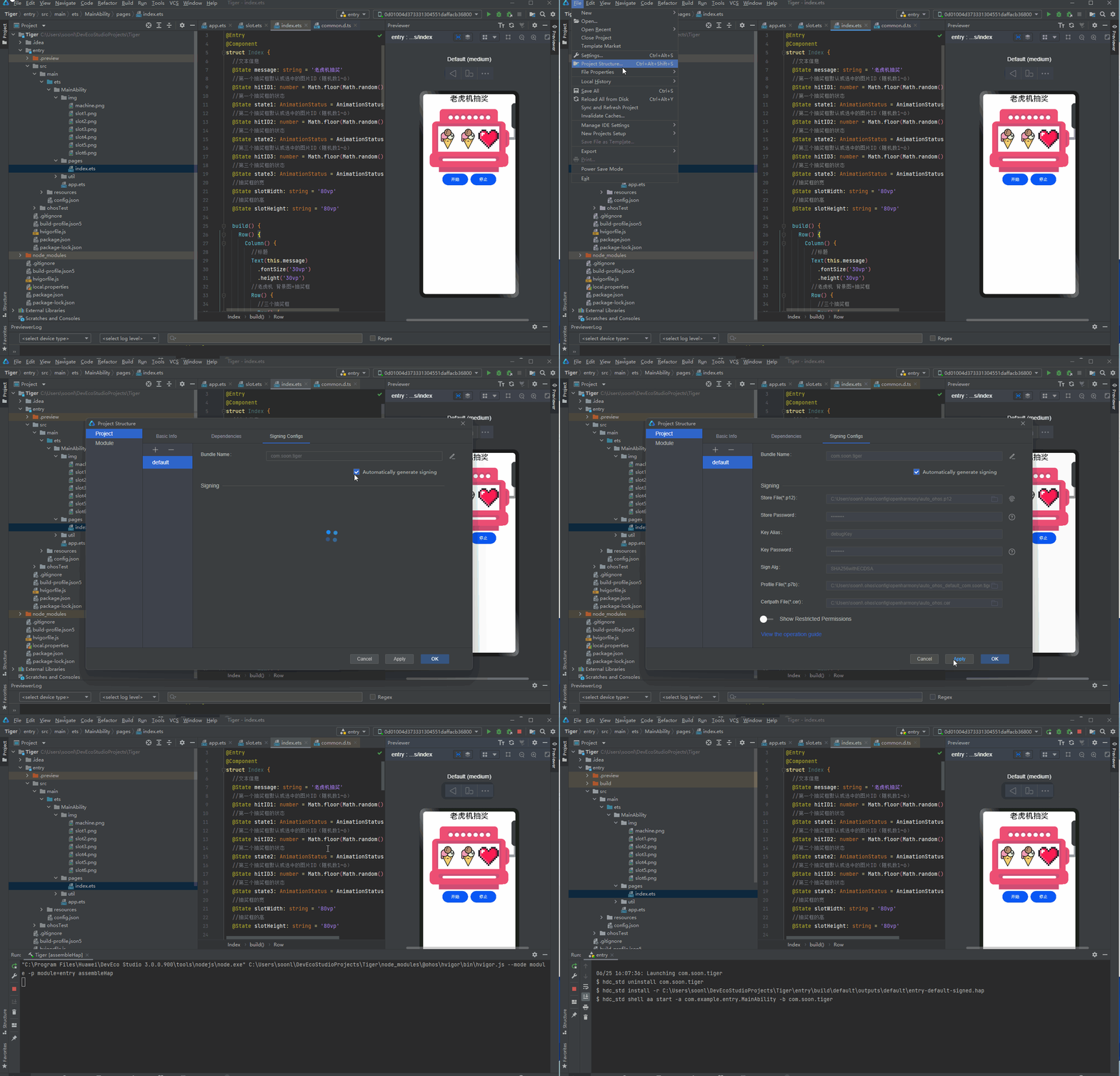
- 在OTG连接Unionpi Tiger开发板后。 使用DevEco Studio 3.0.0.900 的自动签名即可。然后点击绿色运行按钮即可下载到开发板,操作步骤见动图。 以上本篇分享,感谢阅读。 文章相关附件可以点击下面的原文链接前往下载: https://ost.51cto.com/resource/2320。 想了解更多关于开源的内容,请访问: 51CTO 开源基础软件社区 https://ost.51cto.com。

本实验使用Unionpi Tiger开发套件并烧录OpenHarmony-3.1-Release,Windows 安装DevEco Studio 3.0.0.900。
实现一个滚动抽奖页面小游戏,Unionpi Tiger开发板实际演示效果如下。

点击开始进行滚动,点击停止依次停止三个滚动框。
打开DevEco Studio 3.0.0.900新建一个Empty Abiliity 工程,如下图:
工程配置参考如下:
整个工程目录结果预览(部分目录手动添加见下文说明)。
因为三个滚动图片是可以复用的,所以我们直接写成组件的方式,实现方法如下:
在entry/src/main/ets/MainAbility下新建util文件夹和img文件夹,并在img目录下添加图片文件slot1~slot6的图片资源(可以自行找想要的图片,建议使用正方形的PNG,案例中大小为200*200)。
新建文件方式如下截图在MainAbility下右键选择New->Directory输入文件夹名字(util或img)后按Enter键新建。
在entry/src/main/ets/MainAbility/util目录下右键选择New->eTS File输入slot后按Enter键新建。
使用ImageAnimator帧动画组件来实现逐帧播放图片的能力,可以配置需要播放的图片列表,每张图片可以配置时长。详细介绍参考
slot.ets代码如下,代码见注释说明。
//@Entry
@Component
export struct slot {
 //@State state: AnimationStatus = AnimationStatus.Running
 //@State hitNumber: number = 3
 //@State slotWidth: number = 100
 //@State slotHeight: number = 100

 /*AnimationStatus state
 Initial 动画初始状态。
 Running 动画处于播放状态。
 Paused 动画处于暂停状态。
 Stopped 动画处于停止状态
 */
 @Link state: AnimationStatus
 /*hitNumber:此处利用preDecode这个属性,让状态停止后显示最后解码的图片
 */
 @Link hitNumber: number
 /*组件宽度*/
 @Link slotWidth: string | number
 /*组件高度*/
 @Link slotHeight: string | number

 build() {
 Stack() {
 ImageAnimator()
 /*所有图片*/
 .images([
 {
 src: '/img/slot1.png',//img文件夹与pages同级
 duration: 100//单位为毫秒,默认时长为1000ms;duration为0时,不播放图片;值的改变只会在下一次循环开始时生效;当images中任意一帧图片设置了单独的duration后,该属性设置无效。
 },
 {
 src: '/img/slot2.png',
 duration: 100
 },
 {
 src: '/img/slot3.png',
 duration: 100
 },
 {
 src: '/img/slot4.png',
 duration: 100
 },
 {
 src: '/img/slot5.png',
 duration: 100
 },
 {
 src: '/img/slot6.png',
 duration: 100
 }
 ])
 .state(this.state)//用于控制播放状态。
 .reverse(false)//设置播放顺序。false表示从第1张图片播放到最后1张图片; true表示从最后1张图片播放到第1张图片。
 .fixedSize(true)// 设置图片大小是否固定为组件大小。 true表示图片大小与组件大小一致,此时设置图片的width 、height 、top 和left属性是无效的。false表示每一张图片的width 、height 、top和left属性都要单独设置
 .preDecode(this.hitNumber)//preDecode 默认值为0,即不启用预解码,如该值设为2,则播放当前页时会提前加载后面两张图片至缓存以提升性能。
 .fillMode(FillMode.Forwards)//设置动画开始前和结束后的状态
 .iterations(-1)//设置播放顺序。false表示从第1张图片播放到最后1张图片; true表示从最后1张图片播放到第1张图片。
 .onStart(() => { // 状态回调,动画开始播放时触发
 console.info('Start')
 })
 .onPause(() => {// 状态回调,动画暂停播放时触发。
 console.info('Pause')
 })
 .onRepeat(() => {// 状态回调,动画重新播放时触发。
 console.info('Repeat')
 })
 .onCancel(() => {// 状态回调,动画取消播放时触发。
 console.info('Cancel')
 })
 .onFinish(() => { // 状态回调,动画播放完成时触发。
 console.info('Finish')
 })
 }
 .height(this.slotHeight)
 .width(this.slotWidth)
 }
}
如果想要先预览下效果可以按以下修改slot.ets,这样子就能进行预览了。
@Entry//取消注释
 @State state: AnimationStatus = AnimationStatus.Running//取消注释
 @State hitNumber: number = 3//取消注释
 @State slotWidth: number = 100//取消注释
 @State slotHeight: number = 100//取消注释

 //@Link state: AnimationStatus//注释
 //@Link hitNumber: number//注释
 //@Link slotWidth: string | number//注释
 //@Link slotHeight: string | number//注释
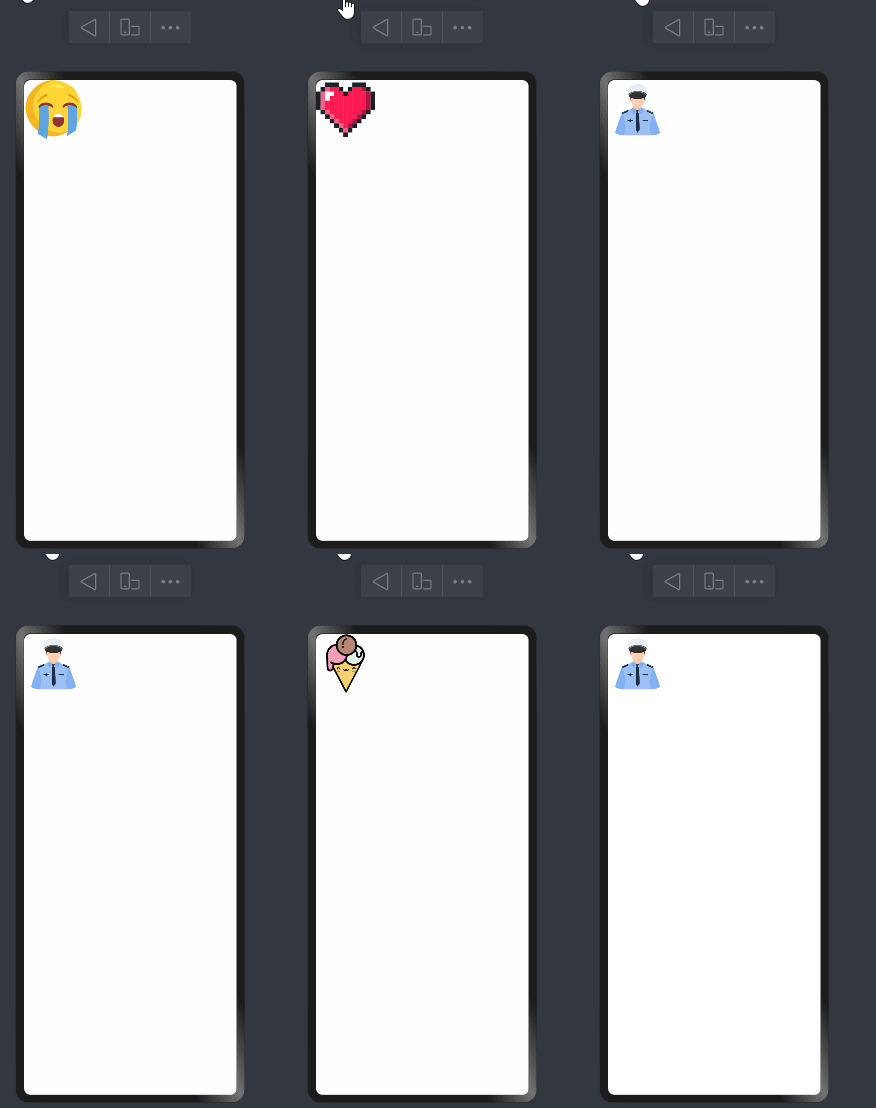
预览效果如下:
引用方式如下通过import直接导入。
import { slot } from '../util/slot';//导入滚动图片组件
主要包含标题、背景图片、滚动图片组件、及两个按键,具体实现代码如下。
import { slot } from '../util/slot';//导入滚动图片组件
@Entry
@Component
struct Index {
 //文本信息
 @State message: string = '抽奖'
 //第一个滚动图片默认或选中的图片ID(随机数1~6)
 @State hitID1: number = Math.floor(Math.random() * 5)+1
 //第一个滚动图片的状态
 @State state1: AnimationStatus = AnimationStatus.Paused
 //第二个滚动图片默认或选中的图片ID(随机数1~6)
 @State hitID2: number = Math.floor(Math.random() * 5)+1
 //第二个滚动图片的状态
 @State state2: AnimationStatus = AnimationStatus.Paused
 //第三个滚动图片默认或选中的图片ID(随机数1~6)
 @State hitID3: number = Math.floor(Math.random() * 5)+1
 //第三个滚动图片的状态
 @State state3: AnimationStatus = AnimationStatus.Paused
 //滚动图片组件的宽
 @State slotWidth: string = '80vp'
 //滚动图片组件的高
 @State slotHeight: string = '80vp'
 build() {
 Row() {
 Column() {
 //标题
 Text(this.message)
 .fontSize('30vp')
 .height('30vp')

 //背景图+三个滚动图片
 Row() {
 //三个滚动图片
 Row() {
 //第一个滚动图片
 slot({
 state: $state1,
 hitNumber: $hitID1,
 slotWidth: $slotWidth,
 slotHeight: $slotHeight
 })
 //第二个滚动图片
 slot({
 state: $state2,
 hitNumber: $hitID2,
 slotWidth: $slotWidth,
 slotHeight: $slotHeight
 })
 //第三个滚动图片
 slot({
 state: $state3,
 hitNumber: $hitID3,
 slotWidth: $slotWidth,
 slotHeight: $slotHeight
 })
 }.margin({left:'35vp', top: '10vp'})
 }
 .backgroundImage('/img/machine.png')//背景图
 .backgroundImageSize({height:'100%',width:'100%',})
 .backgroundImagePosition({x:'0vp',y:'0vp'})
 .height('280vp')
 .width('360vp')
 .margin({top:'0vp',left:'40vp'})

 //按键
 Row() {
 //开始按钮,点击开始后三个滚动框分别启动
 Button('开始')
 .width('100vp')
 .height('45vp')
 .padding('5vp')
 .margin({top:'0vp',left:'0vp'})
 .onClick(() => {
 console.info('START');
 setTimeout(()=>{
 this.state1 = AnimationStatus.Running;
 console.info('ChangeSlot1Running');
 },500)
 setTimeout(()=>{
 this.state2 = AnimationStatus.Running;
 console.info('ChangeSlot2Running');
 },1000)
 setTimeout(()=>{
 this.state3 = AnimationStatus.Running;
 console.info('ChangeSlot3Running');
 },1500)
 })
 //点击停止从第一个滚动框开始停止,点击三次依次停止滚动框
 Button('停止')
 .width('100vp')
 .height('45vp')
 .padding('5vp')
 .margin({top:'0vp',left:'10vp'})
 .onClick(() => {
 console.info('STOP');
 if(this.state1 == AnimationStatus.Paused
 && this.state2 == AnimationStatus.Paused
 && this.state3 == AnimationStatus.Running) {
 this.hitID3 = Math.floor(Math.random() * 5)+1;
 console.info('pause number3=' + this.hitID3);
 this.state3 = AnimationStatus.Paused;
 }
 if(this.state1 == AnimationStatus.Paused
 && this.state2 == AnimationStatus.Running
 && this.state3 == AnimationStatus.Running) {
 this.hitID2 = Math.floor(Math.random() * 5)+1;
 console.info('pause number2=' + this.hitID2);
 this.state2 = AnimationStatus.Paused;
 }

 if(this.state1 == AnimationStatus.Running
 && this.state2 == AnimationStatus.Running
 && this.state3 == AnimationStatus.Running) {
 this.hitID1 = Math.floor(Math.random() * 5)+1;
 console.info('pause number1=' + this.hitID1);
 this.state1 = AnimationStatus.Paused;
 }
 })
 }
 }
 .width('100%')
 .height('100%')
 .align(Alignment.Center)
 }
 .height('100%')
 }
}
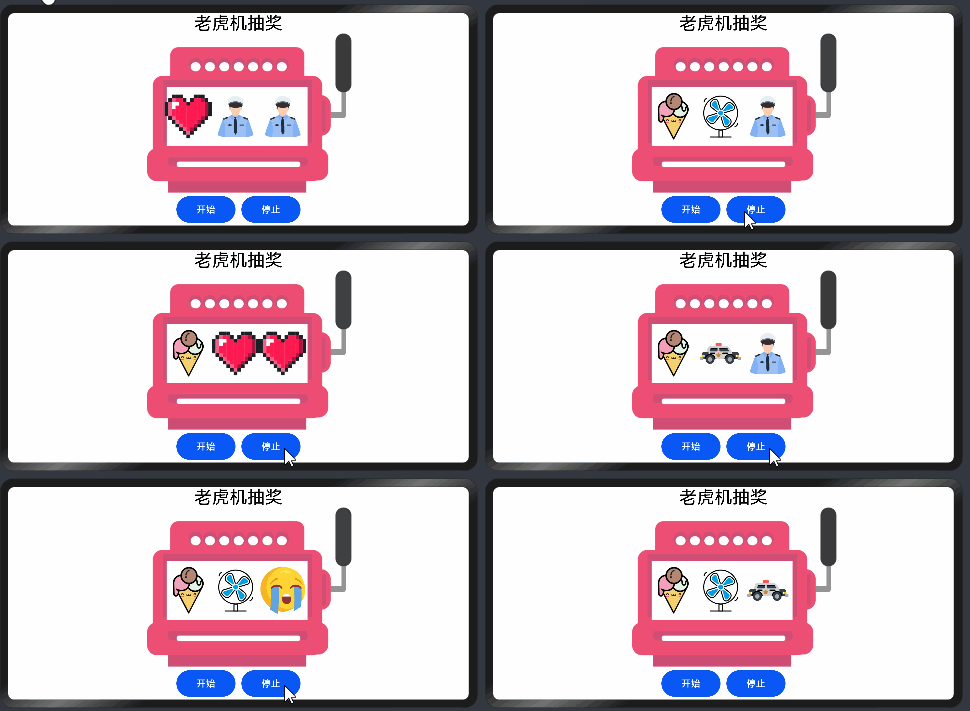
横屏预览效果如下:
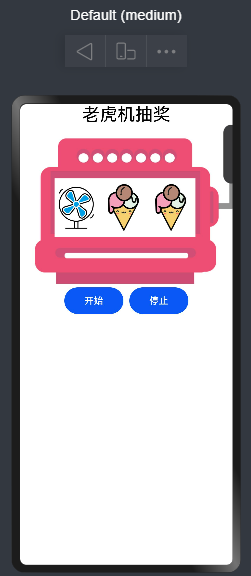
竖屏预览效果如下:
在OTG连接Unionpi Tiger开发板后。
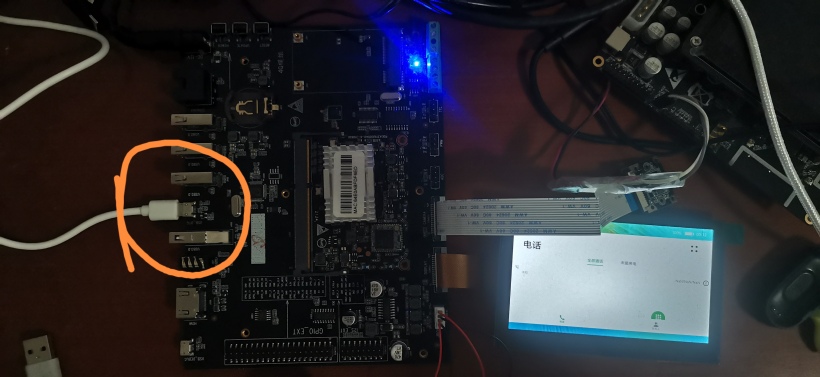
使用DevEco Studio 3.0.0.900 的自动签名即可。然后点击绿色运行按钮即可下载到开发板,操作步骤见动图。
以上本篇分享,感谢阅读。
文章相关附件可以点击下面的原文链接前往下载:
https://ost.51cto.com/resource/2320。
© 版权声明
文章版权归作者所有,未经允许请勿转载。