
文章目录
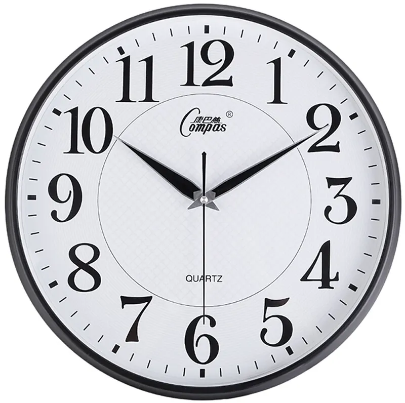
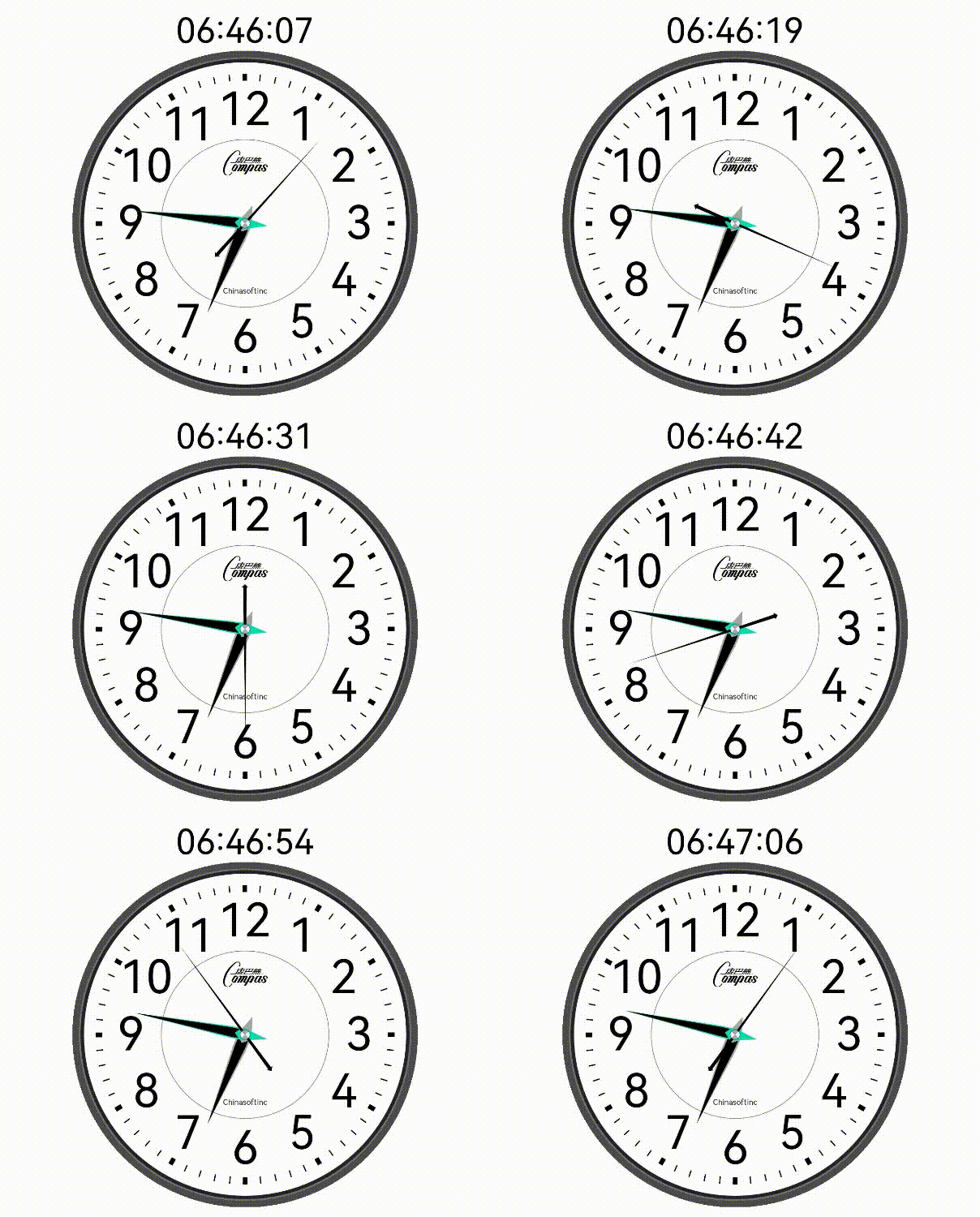
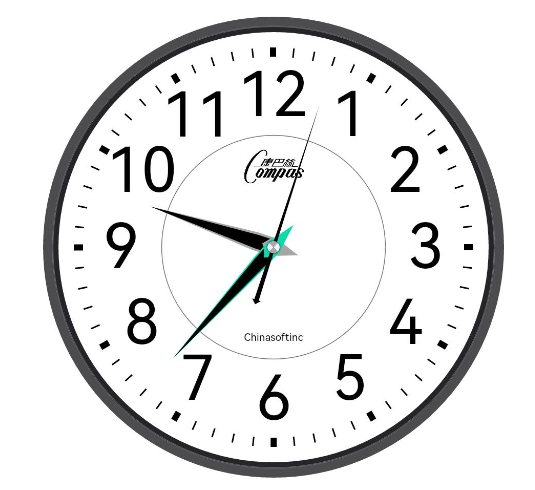
- 最近项目有用到Canvas组件,想扩展熟悉下eTS Canvas组件,便有了这个项目。先看下实现效果,左边是参考样例, 右边是最终实现效果 (原生字体看起来不太协调, 但没有找到换字体的方法)。 原型 实现效果 开发环境 IDE: DevEco Studio 3.0 Beta4 SDK: API9,3.2.5.5
- 开始之前, 我们需要对Canvas有一些基础概念 Canvas是画布组件, 默认坐标原点在左上顶点. 构造函数接收一个CanvasRenderingContext2D对象, 可以理解为画笔Paint, 它提供了绘制矩形、文字、图片等API, 还支持对Canvas缩放、旋转、平移等能力, 基于这些能力, 我们可以实现常规组件难以实现的效果。 beginPath和closePath接口, 一个Canvas只能设置一个CanvasRenderingContext2D对象, 在绘制不同区域不同样式时为了不了会互相干扰。 绘制之前调用CanvasRenderingContext2D#beginPath()方法重置路径, 绘制结束调用 CanvasRenderingContext2D#closePath()方法结束绘制区间, 以下为示例: // 绘制一个直角, 填充色为 Red canvas.beginPath() canvas.fillStyle = Color.Red.toString() // 起点为 50, 100; width=30, height=50 canvas.fillRect(50, 100, 30, 50) canvas.closePath() // 绘制一个0-90度的弧形, 填充色为 Yellow canvas.beginPath() canvas.fillStyle = Color.Yellow.toString() canvas.moveTo(100, 100) // 起点为 100, 100; 半径=50 canvas.arc(100, 100, 50, 0, toCanvasAngle(90)) canvas.fill() canvas.closePath() 需求拆解: 参照原型图示, 按动静模型可以拆分为背景表盘和旋转的分秒指针. 背景表盘由由外框和时间刻度组成, 主要使用绘制弧形和文字接口, 时分秒指针需要根据时间计算出旋转角度, 对画布旋转对应角度后再绘制上即可。 封装RectF: Canvas绘制时经常需要用到坐标点和大小, 我们可以定义一个class RectF, 维护表盘绘制区域的上下左右4个点的位置, 以便计算绘制区域大小和中心点。 class RectF { public left: number public top: number public right: number public bottom: number constructor(left: number, top: number, right: number, bottom: number) { this.left = left this.top = top this.right = right this.bottom = bottom } width(): number{ return this.right - this.left } height(): number{ return this.bottom - this.top } centerX(): number{ return (this.right + this.left) * 0.5 } centerY(): number{ return (this.top + this.bottom) * 0.5 }}
-
- 在页面build函数下添加Canvas组件, 初始化CanvasRenderingContext2D对象, 确定绘制区域。 @Entry@Componentstruct Clocks { // 表盘绘制大小 componentSize = 300 // 表盘显示区域 displayRect: RectF // 画笔 canvas: CanvasRenderingContext2D = new CanvasRenderingContext2D(new RenderingContextSettings(true)) aboutToAppear() { this.displayRect = new RectF(0, 0, this.componentSize, this.componentSize) } build() { Column() { Canvas(this.canvas) .height(this.componentSize) .width(this.componentSize) .onReady(() => { let canvas = this.canvas let displayRect = this.displayRect canvas.fillStyle = '#ffe0ad5d' canvas.fillRect(0, 0, displayRect.width(), displayRect.height()) }) } .width('100%') .height('100%') .justifyContent(FlexAlign.Center) }
- 表盘外圈由一个深灰色#4C4C4E的外层和和黑色#252529内层组合, 使用绘制弧形再填充即可实现. 但还需要镂空中部使用canvas.globalCompositeOperation属性可以实现。 drawDial(canvas: CanvasRenderingContext2D, displayRect: RectF, innerRect: RectF) { // 绘制外圈 canvas.save() this.fillCircle(displayRect.centerX(), displayRect.centerY(), displayRect.radius(), '#4C4C4E') this.fillCircle(displayRect.centerX(), displayRect.centerY(), displayRect.radius() - this.outCircleWidth, '#252529') // 镂空中部 canvas.globalCompositeOperation = 'destination-out' this.fillCircle(displayRect.centerX(), displayRect.centerY(), displayRect.radius() - this.outCircleWidth - this.outCircleInnerWidth) canvas.restore() // 外圈中线 canvas.beginPath() canvas.strokeStyle = '#ff726f6f' canvas.arc(displayRect.centerX(), displayRect.centerY(), displayRect.radius() - this.outCircleWidth, 0, toCanvasAngle(360)) canvas.arc(displayRect.centerX(), displayRect.centerY(), displayRect.radius() - this.outCircleWidth - 0.5, 0, toCanvasAngle(360)) canvas.stroke() canvas.closePath() // 轮盘下方文字 canvas.beginPath() canvas.fillStyle = Color.Black.toString() canvas.font = '20px sans-serif' let bottomText = 'Chinasoftinc' let bottomTextMetrics = canvas.measureText(bottomText) canvas.fillText(bottomText, innerRect.centerX() - bottomTextMetrics.width / 2, innerRect.centerY() + this.innerRadius - 12) canvas.closePath() // 上方品牌标识 let vendorImgWidth = 45 let vendorImgHeight = vendorImgWidth / 1.74 canvas.drawImage(this.vendorImg, innerRect.centerX() - vendorImgWidth / 2, innerRect.centerY() - this.innerRadius + 7, vendorImgWidth, vendorImgHeight) // 内圆 canvas.beginPath() canvas.lineWidth = 0.5 canvas.strokeStyle = '#727478' canvas.arc(innerRect.centerX(), innerRect.centerY(), this.innerRadius, 0, toCanvasAngle(360)) canvas.stroke() canvas.closePath() }
- 绘制时间刻度使用lineTo方法可以实现, 关键点在如何确定起点和钟点位置, 这里需要用到直角三角形边长和角度关系公式, 使用Math.con和sin函数可以计算出任意角度的坐标. 绘制文字也同理, 实现效果如下: drawAxis(canvas: CanvasRenderingContext2D, displayRect: RectF, innerRect: RectF) { canvas.save() canvas.beginPath() // 刻度线总个数 let axisCount = 12 * 5 // 每个刻度线角度 let eachAxisAngle = 360 / axisCount let radius = innerRect.radius() canvas.strokeStyle = Color.Black.toString() canvas.font = '120px GarnetItalic.ttf' let axisLineRadius = radius - this.axisLineLength let axisFontRadius = axisLineRadius - this.axisFontMargin canvas.textBaseline = 'middle' for (let i = 0; i < axisCount; i++) { let ange = eachAxisAngle * i - (2 / 3 * 90) let x = radius * Math.cos(toCanvasAngle(ange)) let y = radius * Math.sin(toCanvasAngle(ange)) let xTo = axisLineRadius * Math.cos(toCanvasAngle(ange)) let yTo = axisLineRadius * Math.sin(toCanvasAngle(ange)) // 绘制刻度线 canvas.beginPath() canvas.lineWidth = i % 5 == 0 ? this.axisLineAtHourWidth : 1 canvas.moveTo(innerRect.centerX() + x, innerRect.centerY() + y) canvas.lineTo(innerRect.centerX() + xTo, innerRect.centerY() + yTo) canvas.stroke() canvas.closePath() // 绘制小时数 // 绘制小时数 if (i % 5 == 0) { canvas.fillStyle = Color.Black.toString() let fontX = axisFontRadius * Math.cos(toCanvasAngle(ange)) let fontY = axisFontRadius * Math.sin(toCanvasAngle(ange)) let text = String((i + 5) / 5) let textMetrics = canvas.measureText(text); canvas.fillText(text, innerRect.centerX() + fontX - textMetrics.width / 2, innerRect.centerY() + fontY) } } canvas.closePath() canvas.restore() }
- 指针可以使用Canvas提供的连线能力完成, 主要工作在计算各个点的位置, 难点不大。 /** * 绘制小时指针 */ drawHourPointer(canvas: Canvas2, innerRect: RectF) { canvas.canvas.lineJoin = 'round' let topPoint = new Point(innerRect.centerX() - 40 /**预览用**/, innerRect.centerY() - innerRect.radius() * 0.13) let bottomPoint = new Point(topPoint.x, topPoint.y + innerRect.radius() * 0.78) // 底部灰色区域 canvas.save() .beginPath() .fillStyle('#A5A7A7') .moveToPoint(topPoint) .lineTo(topPoint.x + 6, innerRect.centerY()) .lineTo(topPoint.x + 6, innerRect.centerY() + innerRect.radius() * 0.1) .lineToPoint(bottomPoint) .lineTo(topPoint.x - 6, innerRect.centerY() + innerRect.radius() * 0.1) .lineTo(topPoint.x - 6, innerRect.centerY()) .lineToPoint(topPoint) .fill() .closePath() // 黑色指针区域 let innerTopPoint = new Point(topPoint.x, topPoint.y + innerRect.radius() * 0.19) canvas.fillStyle(Color.Black.toString()) .beginPath() .moveTo(innerTopPoint.x, innerTopPoint.y) // 顶部凹点 .lineTo(innerTopPoint.x + 4.5, innerTopPoint.y - 4) // 右上 .lineTo(innerTopPoint.x + 4.5, innerTopPoint.y + 4) // 右中 .lineToPoint(bottomPoint) .lineTo(innerTopPoint.x - 4.5, innerTopPoint.y + 4) // 右中 .lineTo(innerTopPoint.x - 4.5, innerTopPoint.y - 4) // 右上 .fill() .closePath() .restore() } /** * 绘制秒钟指针 */ drawSecondPointer(canvas: Canvas2, innerRect: RectF) { canvas.canvas.lineWidth = 1 // 秒钟顶部三角形 let topPoint = new Point(innerRect.centerX() + 40 /**预览用**/, innerRect.centerY() - innerRect.radius() * 0.30) let topRightPoint = new Point(topPoint.x + 3, topPoint.y + 3) let topLeftPoint = new Point(topPoint.x - 3, topPoint.y + 3) let lineRightPoint = new Point(topRightPoint.x - 1.5, topRightPoint.y) let lineLeftPoint = new Point(topLeftPoint.x + 1.5, topLeftPoint.y) let bottomPoint = new Point(topPoint.x, innerRect.centerY() + innerRect.radius() * 0.75) canvas.save() .beginPath() .fillStyle(Color.Black.toString()) .moveToPoint(topPoint) .lineToPoint(topRightPoint) .lineToPoint(lineRightPoint) .lineToPoint(bottomPoint) .lineToPoint(lineLeftPoint) .lineToPoint(topLeftPoint) .lineToPoint(topPoint) .fill() .closePath() .restore() } /** * 绘制分钟指针 */ drawMinutePointer(canvas: Canvas2, innerRect: RectF) { canvas.canvas.lineJoin = 'round' let topPoint = new Point(innerRect.centerX(), innerRect.centerY() - innerRect.radius() * 0.15) let bottomPoint = new Point(topPoint.x, topPoint.y + innerRect.radius() * 0.90) canvas.save() .beginPath() .fillStyle('#A5A7A7') .fillStyle('#ff0bdbaa') .beginPath() .moveToPoint(topPoint) .lineTo(topPoint.x + 5, innerRect.centerY()) .lineTo(topPoint.x + 5, innerRect.centerY() + innerRect.radius() * 0.1) .lineToPoint(bottomPoint) .lineTo(topPoint.x - 5, innerRect.centerY() + innerRect.radius() * 0.1) .lineTo(topPoint.x - 5, innerRect.centerY()) .lineToPoint(topPoint) .fill() .closePath() let innerTopPoint = new Point(topPoint.x, topPoint.y + innerRect.radius() * 0.22) canvas.fillStyle(Color.Black.toString()) .beginPath() .moveTo(innerTopPoint.x, innerTopPoint.y) // 顶部凹点 .lineTo(innerTopPoint.x + 4, innerTopPoint.y - 4) // 右上 .lineTo(innerTopPoint.x + 4, innerTopPoint.y + 4) // 右中 .lineToPoint(bottomPoint) .lineTo(innerTopPoint.x - 4, innerTopPoint.y + 4) // 右中 .lineTo(innerTopPoint.x - 4, innerTopPoint.y - 4) // 右上 .fill() .closePath() .restore() } /** * 绘制指针中心点 */ drawClockCenter(canvas: CanvasRenderingContext2D, innerRect: RectF) { let centerRadius = 4 canvas.save() canvas.beginPath() canvas.shadowBlur = 2 canvas.shadowColor = 'rgba(12, 12, 12, 1.00)' canvas.moveTo(innerRect.centerX(), innerRect.centerY()) canvas.arc(innerRect.centerX(), innerRect.centerY(), centerRadius, toCanvasAngle(0), toCanvasAngle(360)) canvas.fill() canvas.closePath() canvas.restore() for (let i = 0; i < 360; i += 90) { let startAngle = i + 90 / 2 canvas.beginPath() canvas.fillStyle = i / 90 % 2 == 0 ? '#A9A8AD' : '#F3F3F7' canvas.moveTo(innerRect.centerX(), innerRect.centerY()) canvas.arc(innerRect.centerX(), innerRect.centerY(), centerRadius, toCanvasAngle(startAngle), toCanvasAngle(startAngle + 90)) canvas.fill() canvas.closePath() } }
- 到现在我们绘制的主要工作均已完成, 还剩下最后一个工作, 启动一个定时器, 定时计算出时分秒各指针的旋转角度, 在绘制的指针前对画布做旋转操作即可。 /** * 组件初始化时创建定时任务 */ aboutToAppear(){ ... setInterval(() => { this.date = this.getDate() }, 1000) } /** * 计算时分秒 */ getDate(): string{ let current = new Date(); this.currentHours = current.getHours() this.currentMinutes = current.getMinutes() this.currentSeconds = current.getSeconds() return `${complement(this.currentHours)}:${complement(this.currentMinutes)}:${complement(this.currentSeconds)}` } // 根据时间转换分针旋转角度 this.currentMinutes / 60 * 360 + this.currentSeconds / 60 / 12 / 5 * 360 // 根据时间转换时针旋转角度 this.currentHours * 5 / 60 * 360 + this.currentMinutes / 60 / 12 * 360 // 根据时间转换秒针旋转角度 this.currentSeconds / 60 * 360 /** * 绘制分钟指针 */ drawMinutePointer(){ canvas.save() .beginPath() .translate(innerRect.centerX(), innerRect.centerY()) .rotate(toCanvasAngle(this.conventDateMinuteToAngle() + 180)) .translate(-innerRect.centerX(), -innerRect.centerY())} ... }
- 至此一块石英钟表组件已经完成,总体来说技术难点不大,主要使用Canvas绘制弧形和Path方法。 想了解更多关于开源的内容,请访问: 51CTO 开源基础软件社区 https://ost.51cto.com。

最近项目有用到Canvas组件,想扩展熟悉下eTS Canvas组件,便有了这个项目。先看下实现效果,左边是参考样例, 右边是最终实现效果
(原生字体看起来不太协调, 但没有找到换字体的方法)。
|
原型 |
实现效果 |
|
|
|
- 开发环境
- IDE: DevEco Studio 3.0 Beta4
- SDK: API9,3.2.5.5
开始之前, 我们需要对Canvas有一些基础概念
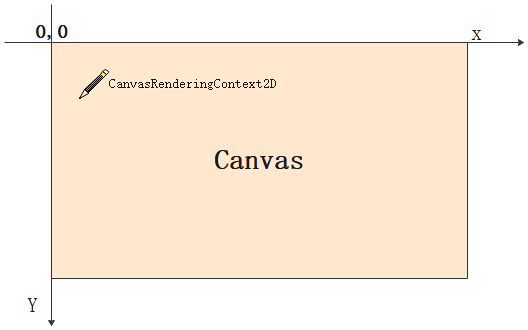
- Canvas是画布组件, 默认坐标原点在左上顶点. 构造函数接收一个CanvasRenderingContext2D对象, 可以理解为画笔Paint, 它提供了绘制矩形、文字、图片等API, 还支持对Canvas缩放、旋转、平移等能力, 基于这些能力, 我们可以实现常规组件难以实现的效果。
beginPath和closePath接口, 一个Canvas只能设置一个CanvasRenderingContext2D对象, 在绘制不同区域不同样式时为了不了会互相干扰。
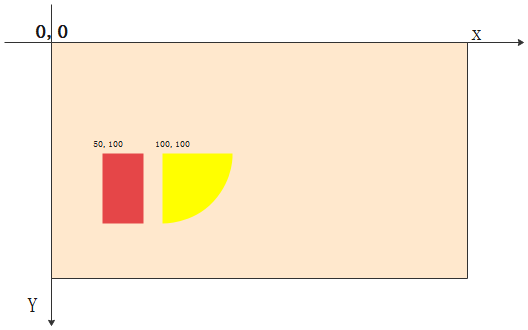
绘制之前调用CanvasRenderingContext2D#beginPath()方法重置路径, 绘制结束调用 CanvasRenderingContext2D#closePath()方法结束绘制区间, 以下为示例:
// 绘制一个直角, 填充色为 Red
 canvas.beginPath()
 canvas.fillStyle = Color.Red.toString()
 // 起点为 50, 100; width=30, height=50
 canvas.fillRect(50, 100, 30, 50)
 canvas.closePath()

 // 绘制一个0-90度的弧形, 填充色为 Yellow
 canvas.beginPath()
 canvas.fillStyle = Color.Yellow.toString()
 canvas.moveTo(100, 100)
 // 起点为 100, 100; 半径=50
 canvas.arc(100, 100, 50, 0, toCanvasAngle(90))
 canvas.fill()
 canvas.closePath()
- 需求拆解: 参照原型图示, 按动静模型可以拆分为背景表盘和旋转的分秒指针. 背景表盘由由外框和时间刻度组成, 主要使用绘制弧形和文字接口, 时分秒指针需要根据时间计算出旋转角度, 对画布旋转对应角度后再绘制上即可。
- 封装RectF: Canvas绘制时经常需要用到坐标点和大小, 我们可以定义一个class RectF, 维护表盘绘制区域的上下左右4个点的位置, 以便计算绘制区域大小和中心点。
class RectF {
 public left: number
 public top: number
 public right: number
 public bottom: number
 constructor(left: number, top: number, right: number, bottom: number) {
 this.left = left
 this.top = top
 this.right = right
 this.bottom = bottom
 }
 width(): number{
 return this.right - this.left
 }
 height(): number{
 return this.bottom - this.top
 }
 centerX(): number{
 return (this.right + this.left) * 0.5
 }
 centerY(): number{
 return (this.top + this.bottom) * 0.5
 }
}
在页面build函数下添加Canvas组件, 初始化CanvasRenderingContext2D对象, 确定绘制区域。
@Entry
@Component
struct Clocks {
 // 表盘绘制大小
 componentSize = 300
 // 表盘显示区域
 displayRect: RectF
 // 画笔
 canvas: CanvasRenderingContext2D = new CanvasRenderingContext2D(new RenderingContextSettings(true))
 aboutToAppear() {
 this.displayRect = new RectF(0, 0, this.componentSize, this.componentSize)
 }
 build() {
 Column() {
 Canvas(this.canvas)
 .height(this.componentSize)
 .width(this.componentSize)
 .onReady(() => {
 let canvas = this.canvas
 let displayRect = this.displayRect

 canvas.fillStyle = '#ffe0ad5d'
 canvas.fillRect(0, 0, displayRect.width(), displayRect.height())
 })
 }
 .width('100%')
 .height('100%')
 .justifyContent(FlexAlign.Center)
 }
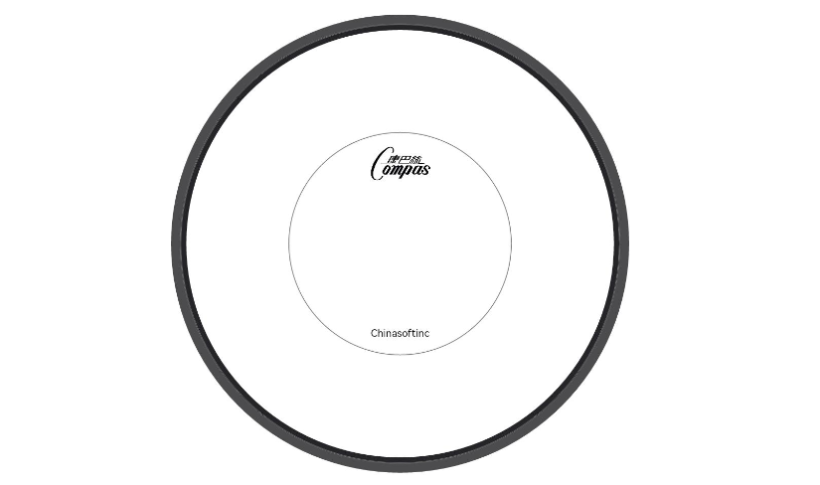
表盘外圈由一个深灰色#4C4C4E的外层和和黑色#252529内层组合, 使用绘制弧形再填充即可实现. 但还需要镂空中部使用canvas.globalCompositeOperation属性可以实现。
drawDial(canvas: CanvasRenderingContext2D, displayRect: RectF, innerRect: RectF) {
 // 绘制外圈
 canvas.save()
 this.fillCircle(displayRect.centerX(), displayRect.centerY(), displayRect.radius(), '#4C4C4E')
 this.fillCircle(displayRect.centerX(), displayRect.centerY(), displayRect.radius() - this.outCircleWidth, '#252529')
 // 镂空中部
 canvas.globalCompositeOperation = 'destination-out'
 this.fillCircle(displayRect.centerX(), displayRect.centerY(), displayRect.radius() - this.outCircleWidth - this.outCircleInnerWidth)
 canvas.restore()
 // 外圈中线
 canvas.beginPath()
 canvas.strokeStyle = '#ff726f6f'
 canvas.arc(displayRect.centerX(), displayRect.centerY(), displayRect.radius() - this.outCircleWidth, 0, toCanvasAngle(360))
 canvas.arc(displayRect.centerX(), displayRect.centerY(), displayRect.radius() - this.outCircleWidth - 0.5, 0, toCanvasAngle(360))
 canvas.stroke()
 canvas.closePath()
 // 轮盘下方文字
 canvas.beginPath()
 canvas.fillStyle = Color.Black.toString()
 canvas.font = '20px sans-serif'
 let bottomText = 'Chinasoftinc'
 let bottomTextMetrics = canvas.measureText(bottomText)
 canvas.fillText(bottomText, innerRect.centerX() - bottomTextMetrics.width / 2, innerRect.centerY() + this.innerRadius - 12)
 canvas.closePath()
 // 上方品牌标识
 let vendorImgWidth = 45
 let vendorImgHeight = vendorImgWidth / 1.74
 canvas.drawImage(this.vendorImg, innerRect.centerX() - vendorImgWidth / 2, innerRect.centerY() - this.innerRadius + 7, vendorImgWidth, vendorImgHeight)

 // 内圆
 canvas.beginPath()
 canvas.lineWidth = 0.5
 canvas.strokeStyle = '#727478'
 canvas.arc(innerRect.centerX(), innerRect.centerY(), this.innerRadius, 0, toCanvasAngle(360))
 canvas.stroke()
 canvas.closePath()
 }
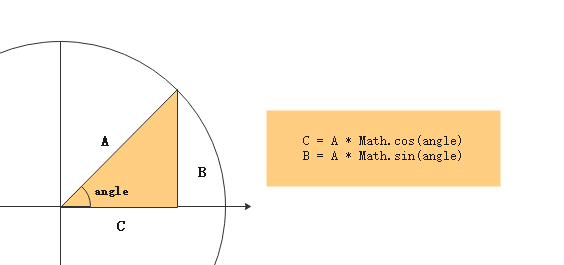
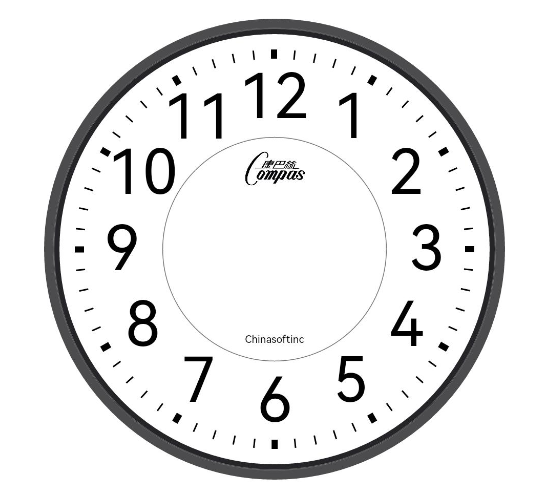
绘制时间刻度使用lineTo方法可以实现, 关键点在如何确定起点和钟点位置, 这里需要用到直角三角形边长和角度关系公式, 使用Math.con和sin函数可以计算出任意角度的坐标. 绘制文字也同理, 实现效果如下:
drawAxis(canvas: CanvasRenderingContext2D, displayRect: RectF, innerRect: RectF) {
 canvas.save()
 canvas.beginPath()
 // 刻度线总个数
 let axisCount = 12 * 5
 // 每个刻度线角度
 let eachAxisAngle = 360 / axisCount
 let radius = innerRect.radius()
 canvas.strokeStyle = Color.Black.toString()
 canvas.font = '120px GarnetItalic.ttf'
 let axisLineRadius = radius - this.axisLineLength
 let axisFontRadius = axisLineRadius - this.axisFontMargin
 canvas.textBaseline = 'middle'
 for (let i = 0; i < axisCount; i++) {
 let ange = eachAxisAngle * i - (2 / 3 * 90)
 let x = radius * Math.cos(toCanvasAngle(ange))
 let y = radius * Math.sin(toCanvasAngle(ange))
 let xTo = axisLineRadius * Math.cos(toCanvasAngle(ange))
 let yTo = axisLineRadius * Math.sin(toCanvasAngle(ange))
 // 绘制刻度线
 canvas.beginPath()
 canvas.lineWidth = i % 5 == 0 ? this.axisLineAtHourWidth : 1
 canvas.moveTo(innerRect.centerX() + x, innerRect.centerY() + y)
 canvas.lineTo(innerRect.centerX() + xTo, innerRect.centerY() + yTo)
 canvas.stroke()
 canvas.closePath()
 // 绘制小时数
 // 绘制小时数
 if (i % 5 == 0) {
 canvas.fillStyle = Color.Black.toString()
 let fontX = axisFontRadius * Math.cos(toCanvasAngle(ange))
 let fontY = axisFontRadius * Math.sin(toCanvasAngle(ange))

 let text = String((i + 5) / 5)
 let textMetrics = canvas.measureText(text);
 canvas.fillText(text, innerRect.centerX() + fontX - textMetrics.width / 2, innerRect.centerY() + fontY)
 }
 }
 canvas.closePath()
 canvas.restore()
 }
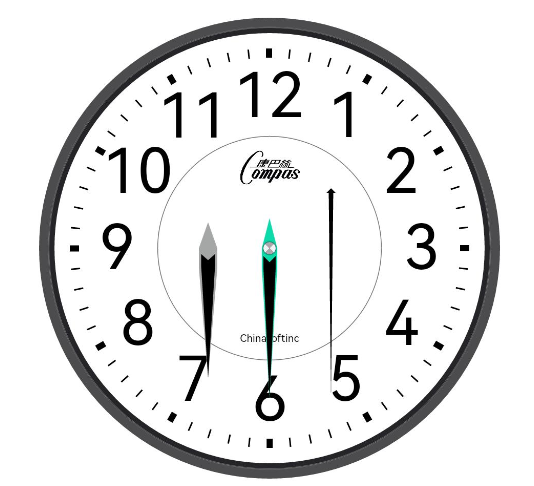
指针可以使用Canvas提供的连线能力完成, 主要工作在计算各个点的位置, 难点不大。
/**
 * 绘制小时指针
 */
 drawHourPointer(canvas: Canvas2, innerRect: RectF) {
 canvas.canvas.lineJoin = 'round'
 let topPoint = new Point(innerRect.centerX() - 40 /**预览用**/, innerRect.centerY() - innerRect.radius() * 0.13)
 let bottomPoint = new Point(topPoint.x, topPoint.y + innerRect.radius() * 0.78)
 // 底部灰色区域
 canvas.save()
 .beginPath()
 .fillStyle('#A5A7A7')
 .moveToPoint(topPoint)
 .lineTo(topPoint.x + 6, innerRect.centerY())
 .lineTo(topPoint.x + 6, innerRect.centerY() + innerRect.radius() * 0.1)
 .lineToPoint(bottomPoint)
 .lineTo(topPoint.x - 6, innerRect.centerY() + innerRect.radius() * 0.1)
 .lineTo(topPoint.x - 6, innerRect.centerY())
 .lineToPoint(topPoint)
 .fill()
 .closePath()
 // 黑色指针区域
 let innerTopPoint = new Point(topPoint.x, topPoint.y + innerRect.radius() * 0.19)
 canvas.fillStyle(Color.Black.toString())
 .beginPath()
 .moveTo(innerTopPoint.x, innerTopPoint.y) // 顶部凹点
 .lineTo(innerTopPoint.x + 4.5, innerTopPoint.y - 4) // 右上
 .lineTo(innerTopPoint.x + 4.5, innerTopPoint.y + 4) // 右中
 .lineToPoint(bottomPoint)
 .lineTo(innerTopPoint.x - 4.5, innerTopPoint.y + 4) // 右中
 .lineTo(innerTopPoint.x - 4.5, innerTopPoint.y - 4) // 右上
 .fill()
 .closePath()
 .restore()
 }
 /**
 * 绘制秒钟指针
 */
 drawSecondPointer(canvas: Canvas2, innerRect: RectF) {
 canvas.canvas.lineWidth = 1
 // 秒钟顶部三角形
 let topPoint = new Point(innerRect.centerX() + 40 /**预览用**/, innerRect.centerY() - innerRect.radius() * 0.30)
 let topRightPoint = new Point(topPoint.x + 3, topPoint.y + 3)
 let topLeftPoint = new Point(topPoint.x - 3, topPoint.y + 3)
 let lineRightPoint = new Point(topRightPoint.x - 1.5, topRightPoint.y)
 let lineLeftPoint = new Point(topLeftPoint.x + 1.5, topLeftPoint.y)
 let bottomPoint = new Point(topPoint.x, innerRect.centerY() + innerRect.radius() * 0.75)
 canvas.save()
 .beginPath()
 .fillStyle(Color.Black.toString())
 .moveToPoint(topPoint)
 .lineToPoint(topRightPoint)
 .lineToPoint(lineRightPoint)
 .lineToPoint(bottomPoint)
 .lineToPoint(lineLeftPoint)
 .lineToPoint(topLeftPoint)
 .lineToPoint(topPoint)
 .fill()
 .closePath()
 .restore()
 }
 /**
 * 绘制分钟指针
 */
 drawMinutePointer(canvas: Canvas2, innerRect: RectF) {
 canvas.canvas.lineJoin = 'round'
 let topPoint = new Point(innerRect.centerX(), innerRect.centerY() - innerRect.radius() * 0.15)
 let bottomPoint = new Point(topPoint.x, topPoint.y + innerRect.radius() * 0.90)
 canvas.save()
 .beginPath()
 .fillStyle('#A5A7A7')
 .fillStyle('#ff0bdbaa')
 .beginPath()
 .moveToPoint(topPoint)
 .lineTo(topPoint.x + 5, innerRect.centerY())
 .lineTo(topPoint.x + 5, innerRect.centerY() + innerRect.radius() * 0.1)
 .lineToPoint(bottomPoint)
 .lineTo(topPoint.x - 5, innerRect.centerY() + innerRect.radius() * 0.1)
 .lineTo(topPoint.x - 5, innerRect.centerY())
 .lineToPoint(topPoint)
 .fill()
 .closePath()

 let innerTopPoint = new Point(topPoint.x, topPoint.y + innerRect.radius() * 0.22)
 canvas.fillStyle(Color.Black.toString())
 .beginPath()
 .moveTo(innerTopPoint.x, innerTopPoint.y) // 顶部凹点
 .lineTo(innerTopPoint.x + 4, innerTopPoint.y - 4) // 右上
 .lineTo(innerTopPoint.x + 4, innerTopPoint.y + 4) // 右中
 .lineToPoint(bottomPoint)
 .lineTo(innerTopPoint.x - 4, innerTopPoint.y + 4) // 右中
 .lineTo(innerTopPoint.x - 4, innerTopPoint.y - 4) // 右上
 .fill()
 .closePath()
 .restore()
 }
 /**
 * 绘制指针中心点
 */
 drawClockCenter(canvas: CanvasRenderingContext2D, innerRect: RectF) {
 let centerRadius = 4
 canvas.save()
 canvas.beginPath()
 canvas.shadowBlur = 2
 canvas.shadowColor = 'rgba(12, 12, 12, 1.00)'
 canvas.moveTo(innerRect.centerX(), innerRect.centerY())
 canvas.arc(innerRect.centerX(), innerRect.centerY(), centerRadius, toCanvasAngle(0), toCanvasAngle(360))
 canvas.fill()
 canvas.closePath()
 canvas.restore()
 for (let i = 0; i < 360; i += 90) {
 let startAngle = i + 90 / 2
 canvas.beginPath()
 canvas.fillStyle = i / 90 % 2 == 0 ? '#A9A8AD' : '#F3F3F7'
 canvas.moveTo(innerRect.centerX(), innerRect.centerY())
 canvas.arc(innerRect.centerX(), innerRect.centerY(), centerRadius, toCanvasAngle(startAngle), toCanvasAngle(startAngle + 90))
 canvas.fill()
 canvas.closePath()
 }
 }
到现在我们绘制的主要工作均已完成, 还剩下最后一个工作, 启动一个定时器, 定时计算出时分秒各指针的旋转角度, 在绘制的指针前对画布做旋转操作即可。
/**
 * 组件初始化时创建定时任务
 */
 aboutToAppear(){
 ...
 setInterval(() => {
 this.date = this.getDate()
 }, 1000)
 }

 /**
 * 计算时分秒
 */
 getDate(): string{
 let current = new Date();
 this.currentHours = current.getHours()
 this.currentMinutes = current.getMinutes()
 this.currentSeconds = current.getSeconds()
 return `${complement(this.currentHours)}:${complement(this.currentMinutes)}:${complement(this.currentSeconds)}`
 }
 // 根据时间转换分针旋转角度
 this.currentMinutes / 60 * 360 + this.currentSeconds / 60 / 12 / 5 * 360
 // 根据时间转换时针旋转角度
 this.currentHours * 5 / 60 * 360 + this.currentMinutes / 60 / 12 * 360
 // 根据时间转换秒针旋转角度
 this.currentSeconds / 60 * 360

 /**
 * 绘制分钟指针
 */
 drawMinutePointer(){
 canvas.save()
 .beginPath()
 .translate(innerRect.centerX(), innerRect.centerY())
 .rotate(toCanvasAngle(this.conventDateMinuteToAngle() + 180))
 .translate(-innerRect.centerX(), -innerRect.centerY())}
 ...
 }
至此一块石英钟表组件已经完成,总体来说技术难点不大,主要使用Canvas绘制弧形和Path方法。
© 版权声明
文章版权归作者所有,未经允许请勿转载。